Change keyboard shortcuts
Most of Revue’s review keys can be changed to the ones your hands already know. You can also set one key that brings Revue to the front from any app.
Rebind a shortcut
Section titled “Rebind a shortcut”- Open Settings › Keyboard shortcuts. The shortcuts are grouped as Help › Keyboard Shortcuts groups them.
- Click the shortcut you want to change. It reads “Press keys”.
- Press the new keys. Esc cancels.
- Choose Save (⌘S).
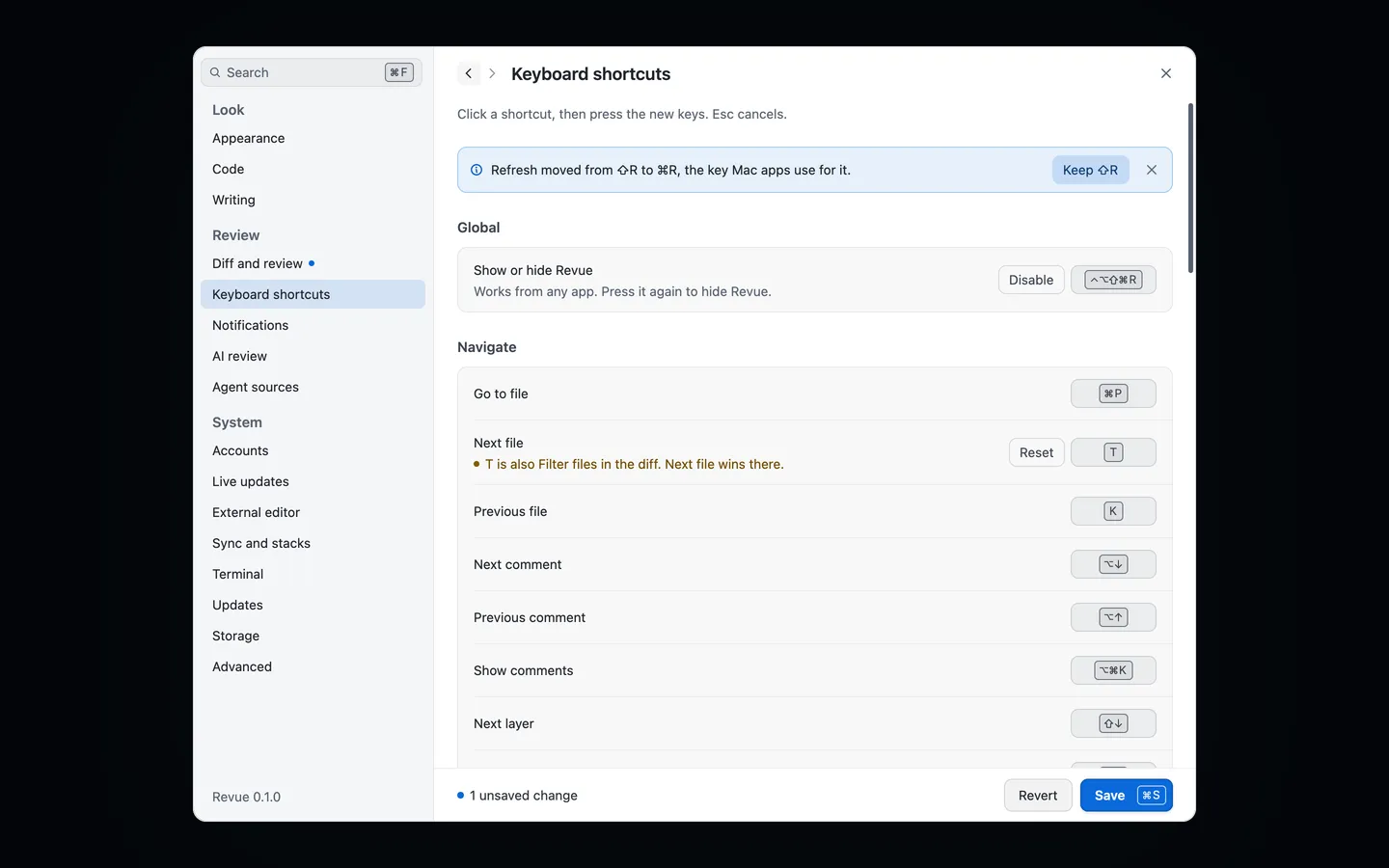
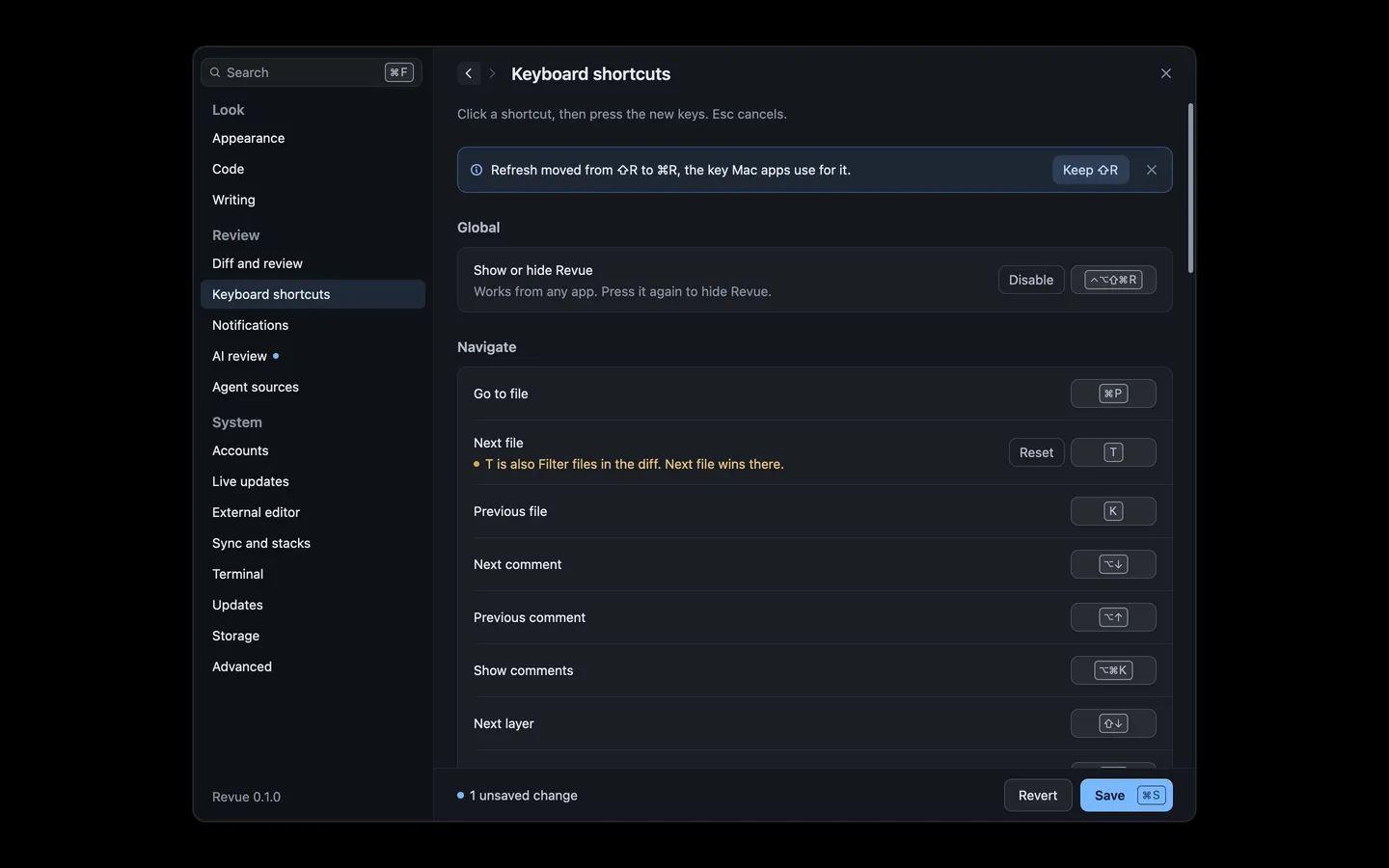
If the keys you chose already do something else in the same place, the row says so under the shortcut, and which of the two wins there. Pick other keys, or change the other command.
A shortcut you’ve changed has its own Reset button, which puts back its default. Restore default shortcuts, at the end of the page, resets all of them. Reset all settings in Settings › Advanced resets them too, with every other setting.
Keys you can’t change
Section titled “Keys you can’t change”35 of Revue’s keys can be changed: the ones marked Yes on Keyboard shortcuts. The rest are fixed, such as the command palette (⌘K), tabs and panes, and keys macOS defines, such as ⌘C and ⌘Q.
Global show and hide
Section titled “Global show and hide”Show or hide Revue, under Global at the top of the page, works from any app. Press it once to bring Revue to the front and again to hide it. It has no key until you set one, and Disable removes it. Pick a combination other apps don’t use, as this one takes it everywhere.