Your first review
This tutorial takes you from the end of Setup to a review on GitHub: open a pull request that’s waiting for you, read it, leave one comment and submit. It takes about ten minutes. You need Revue installed and signed in to GitHub (see Install Revue).
Open a pull request from Setup
Section titled “Open a pull request from Setup”Setup’s last screen, Open, lists the pull requests Waiting for your review, then Yours.
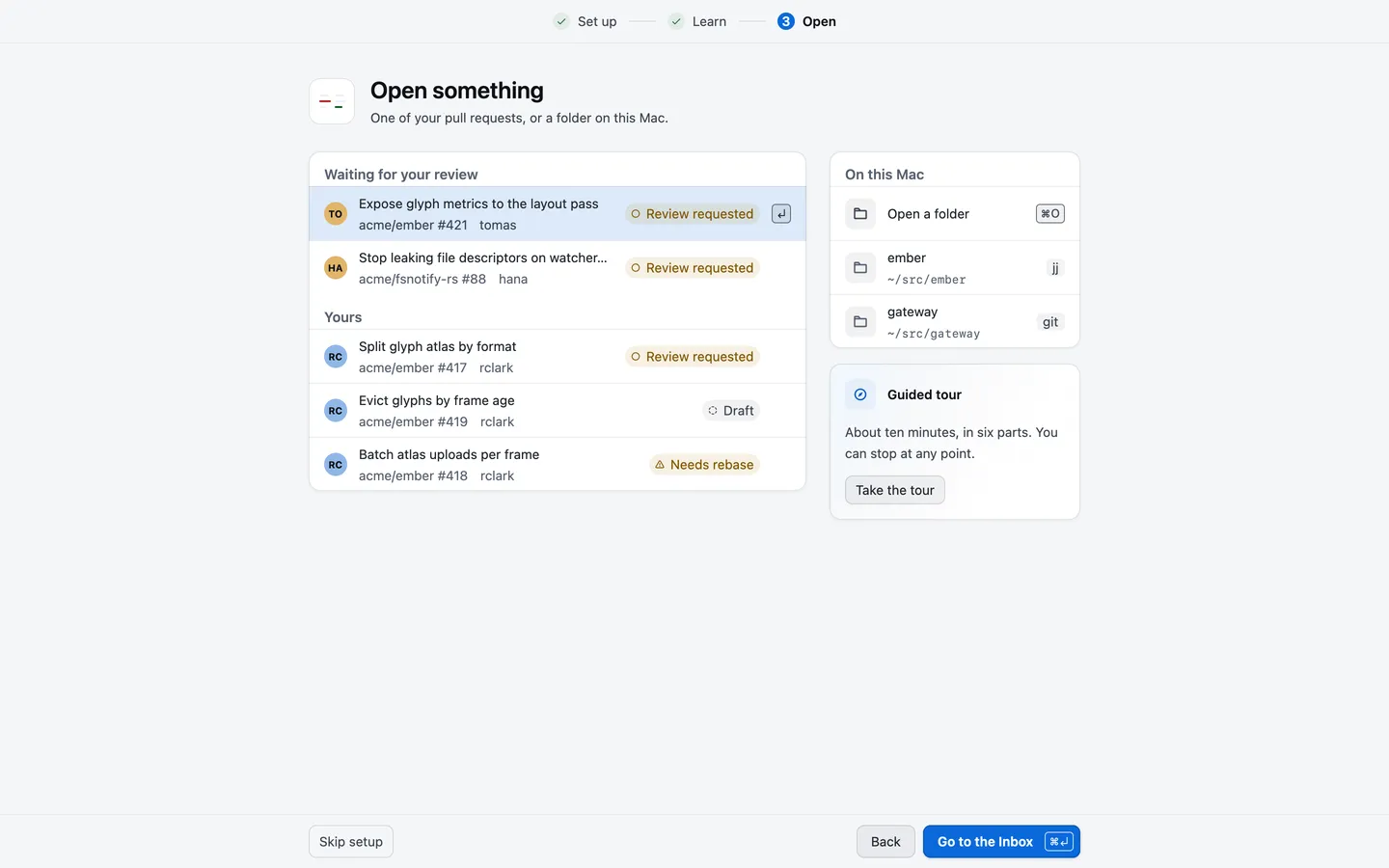
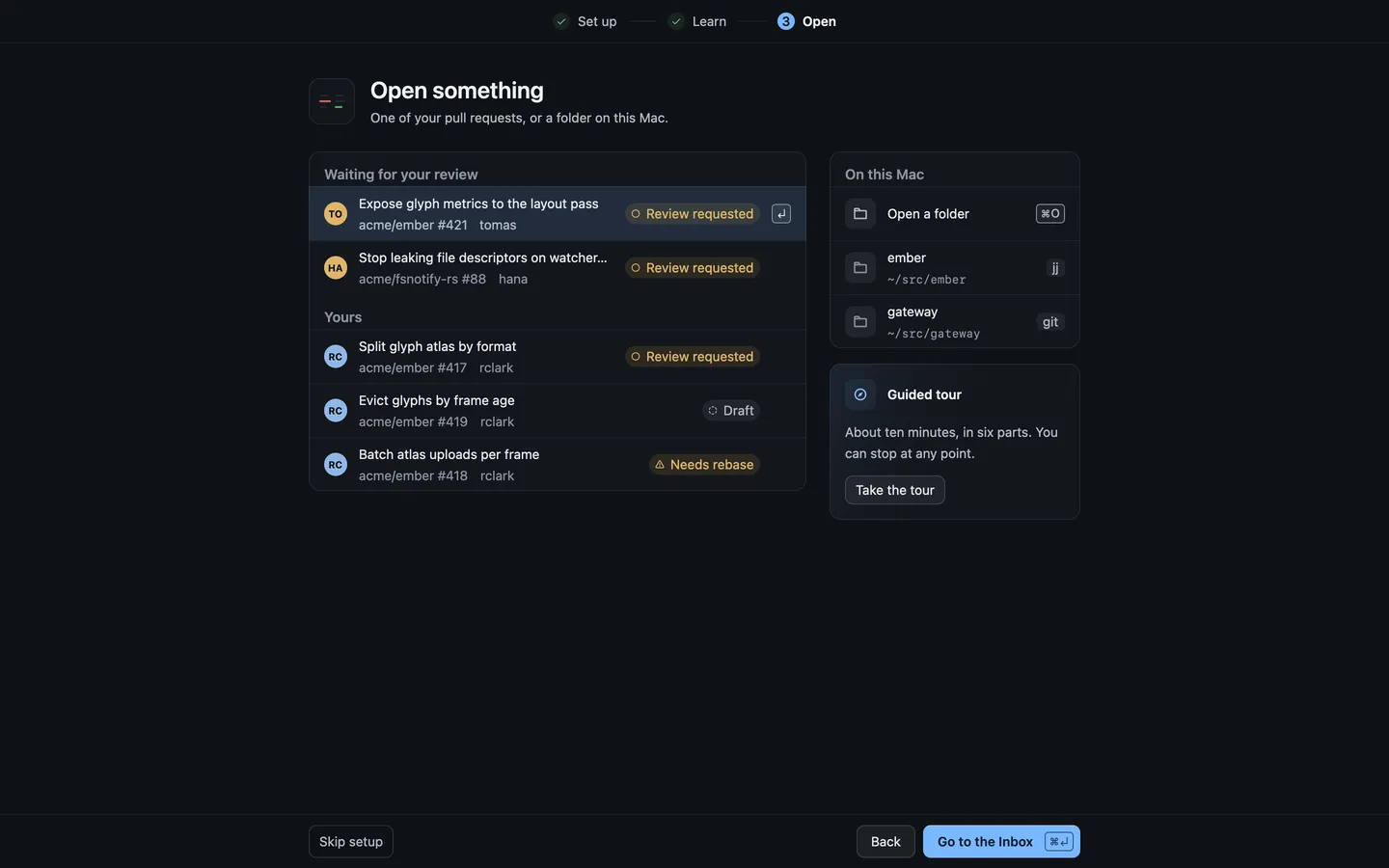
Choose a pull request under Waiting for your review. It opens in a tab of its own, on its Overview.
If the list says “No open pull requests are waiting for you”, choose Go to the Inbox and open any pull request from there. Setup is already behind you, so later you’ll start from the Inbox.
Read the changes
Section titled “Read the changes”The Overview shows the description, the timeline of pushes and reviews, and the threads people have started. A column at its right says what stands before merge, how the checks are doing and who reviews. Read the description first.
Then choose Changes in the bar at the top, or press ⌥⌘O. The same key takes you back to the Overview.
- The sidebar lists the files that changed. Choose one, or press J and K to move to the next and previous file.
- When you’ve read a file, press V to mark it viewed. The count in the sidebar goes up.
Single keys like these act only when no text field has focus.
Leave a comment
Section titled “Leave a comment”- Select a line, or drag across several.
- Press C, or choose Comment in the bar that appears over your selection.
- Write your comment. The line under it says “Goes to your pending review. Only you can see it until you submit.”
- Choose Add comment, or press ⌘↩.
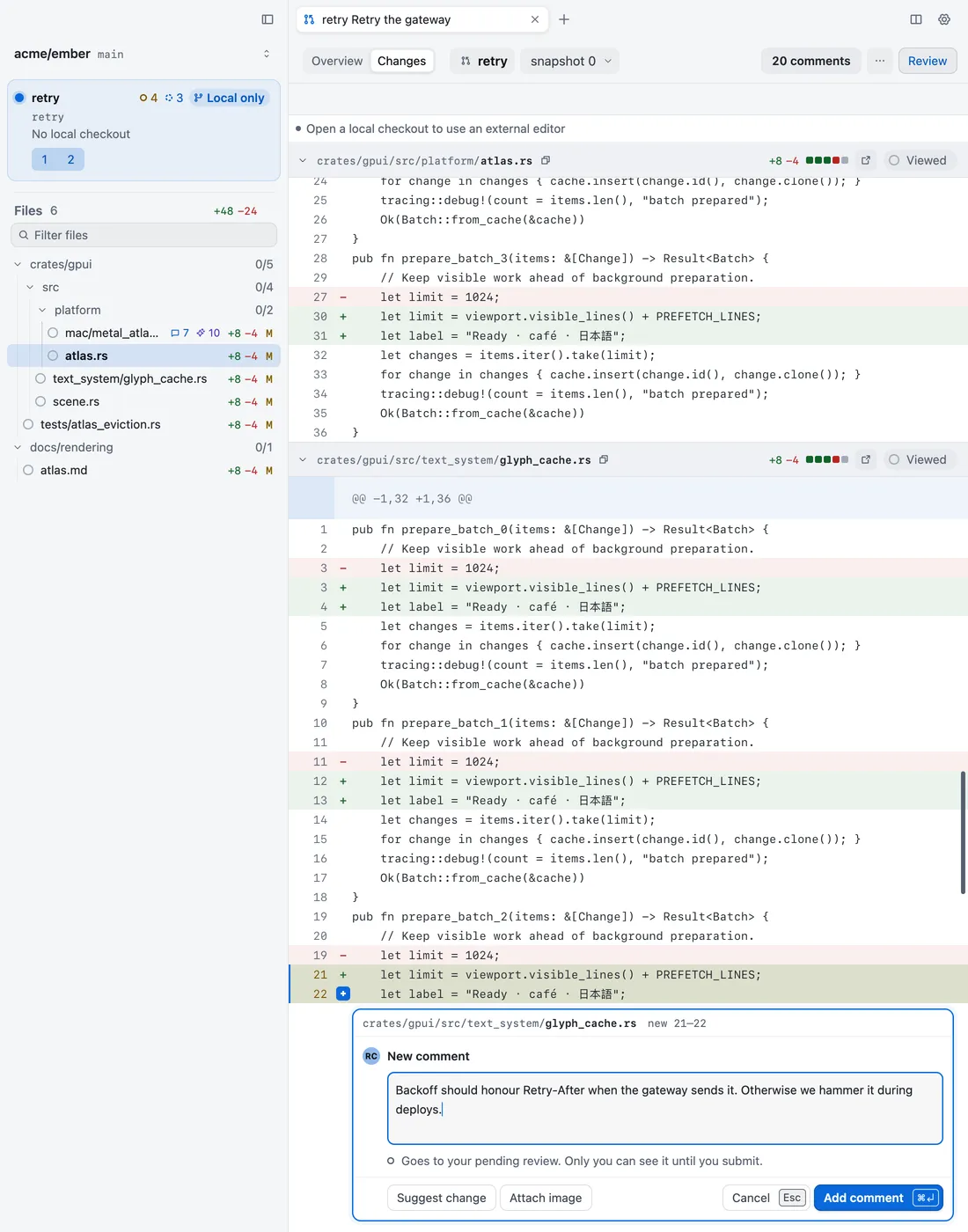
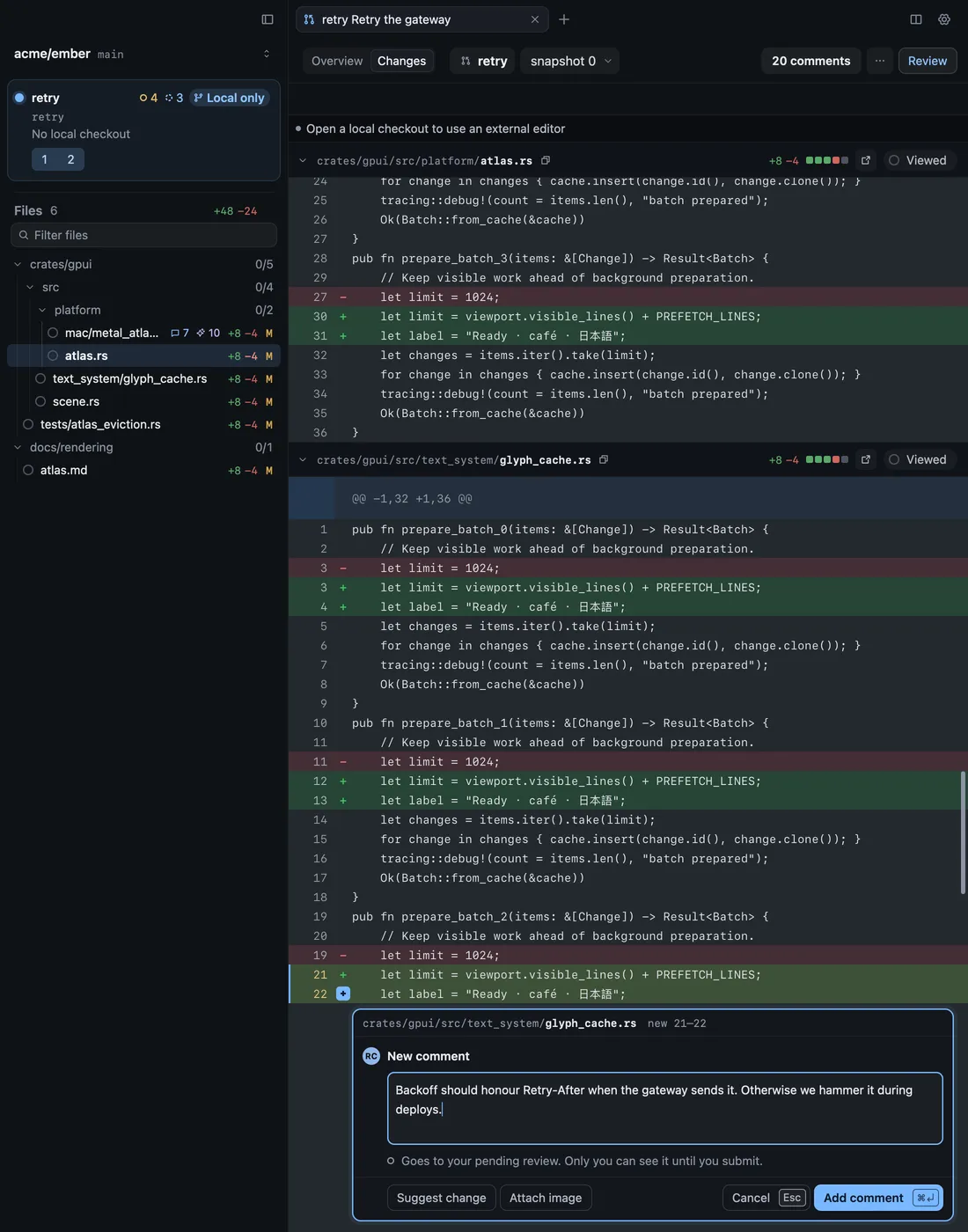
The comment now shows under the line, marked Pending. Nobody else can see it yet. You can edit or delete it until you submit.
Submit your review
Section titled “Submit your review”- Choose Review at the right of the bar, or press ⌥⌘R. The review panel opens. It lists the other reviews, the checks and Your pending comments.
- Choose a verdict: Comment, Approve or Request changes.
- Add a summary in the box above the verdicts if you want one. Request changes asks you to say what needs to change.
- Choose the button at the bottom of the panel. It’s named for your verdict. Or press ⌘↩.
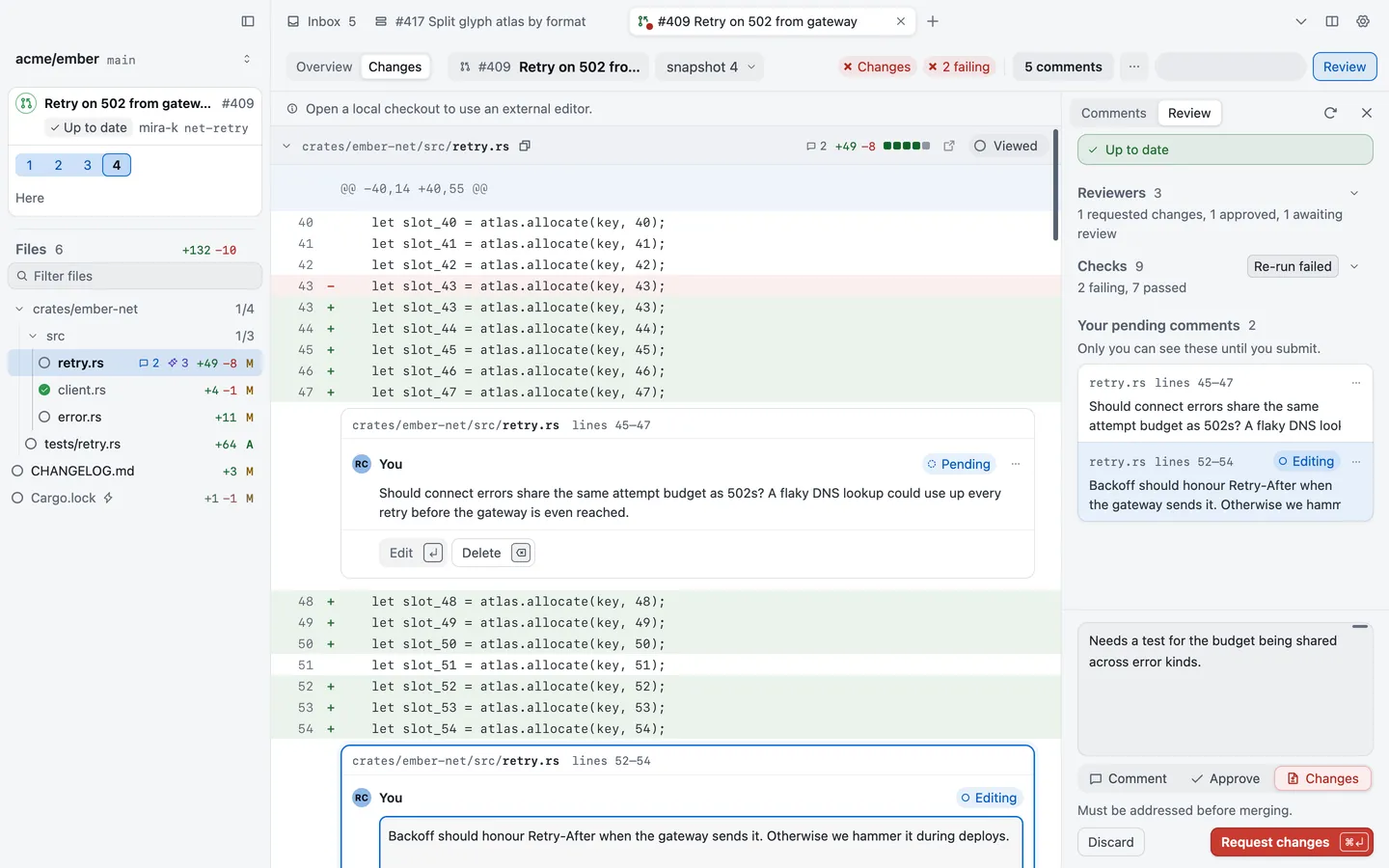
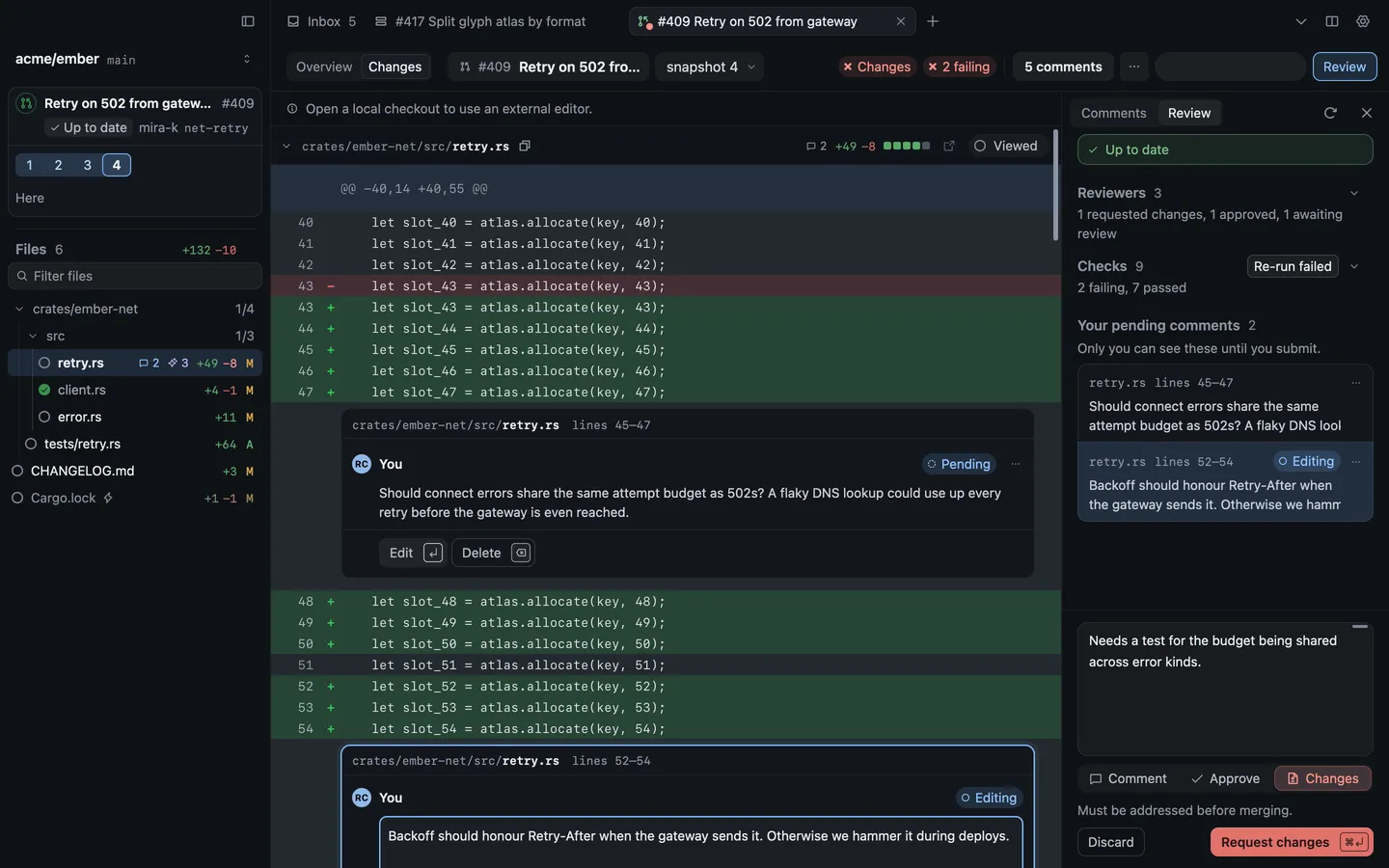
Revue sends your verdict, your summary and every pending comment to GitHub together, as one review. Until you submit, your comments stay in your pending review, where only you can see them.
What to try next
Section titled “What to try next”- Take the tour. Help › Take the Tour walks through Revue on a sample repository, in six parts. Each part can be started on its own from that menu.
- Come back after a push. When the author pushes again, press R to see only what changed since you last looked. See Re-review with snapshots.
- Learn the keys. Help › Keyboard Shortcuts (⌘/) lists the keys. Keyboard shortcuts has the same list.
- Go further. Review a pull request covers suggestions, threads, checks and more.