Re-review with snapshots
When the author pushes again, you don’t need to read the whole pull request a second time. Revue keeps every push, so you can read only what changed since you last looked, or compare any two pushes.
What a snapshot is
Section titled “What a snapshot is”A snapshot is the pull request as it stood after one push. Snapshot 2 shows the full pull request as of its second push, not only what changed since snapshot 1. To see only what changed between two snapshots, you read a range. Snapshots and ranges explains both.
The snapshot control in the bar at the top says which one you’re reading, and whether it’s the latest. Press ] and [ to step to the next and previous snapshot.
Changes since last look
Section titled “Changes since last look”Revue remembers the last snapshot you looked at. When a push lands on a pull request you’ve read, the bar offers the changes, such as “2 new since snapshot 4”, with Show and a dismiss button.
- Choose Show, press R, or choose Go › Changes Since Last Look. Revue opens the range from the snapshot you last looked at to the latest one.
- To go back to the whole pull request, choose Whole pull request in the bar.
A snapshot counts as looked at once you’ve read it for a moment. To set it by hand, choose Go › Mark as Looked (⇧⌘L).
Compare two snapshots
Section titled “Compare two snapshots”- Open the snapshot menu from the snapshot control in the bar.
- Choose Range.
- Choose the first snapshot, then Shift-click the second. In the stack card in the sidebar, Shift-click two snapshot tiles to do the same.
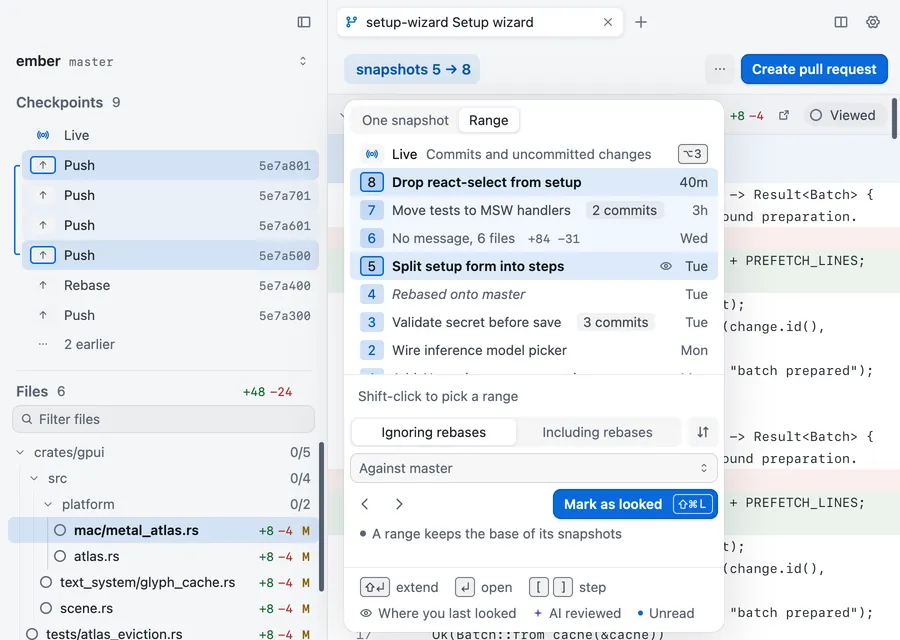
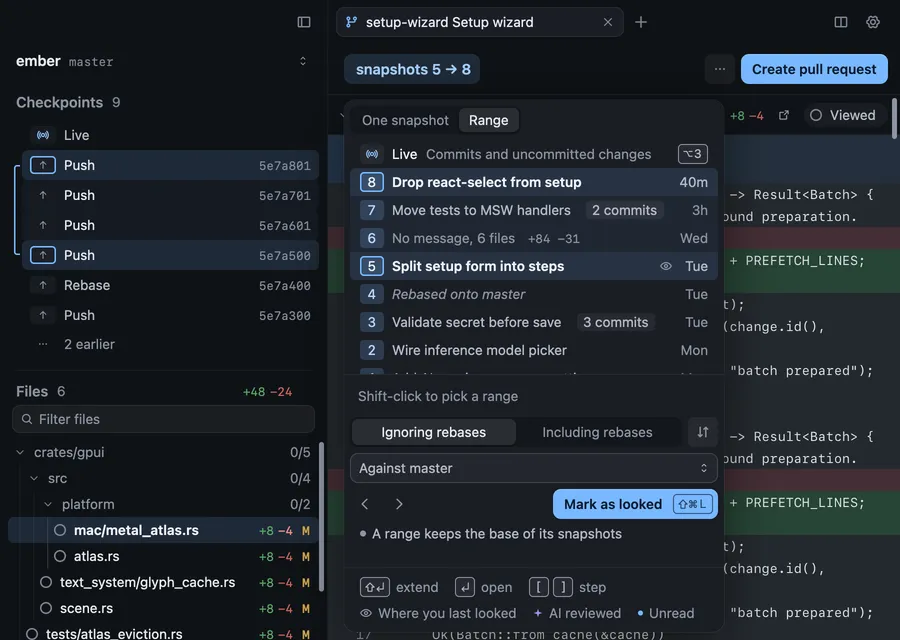
The bar then reads, for example, “snapshots 5 → 8”. Press ⌥1 to go back to one snapshot, and ⌥2 to return to a range. You can read comments in a range, but you can’t add one there.
Ignore rebases
Section titled “Ignore rebases”When the base branch moved between two snapshots, a range would also show every commit that came in from the base. The snapshot menu’s Ignoring rebases leaves those out and shows only how this pull request’s own work changed. Including rebases compares the two snapshots as they are. Ignoring rebases hides nothing the author wrote.
A push that only rebased, with no change to the code, is a rebase-only snapshot. Revue shows it as a hatched segment rather than a numbered one, unless you turn off Quiet rebase-only snapshots.
When a new snapshot arrives
Section titled “When a new snapshot arrives”When someone pushes, the new snapshot arrives and what you’re reading stays put. When a new snapshot arrives in Settings › Sync and stacks decides how Revue tells you:
- Badge only marks the new snapshot in the bar. This is the default.
- Notify also posts a notice.
- Silent marks nothing.
Carry viewed marks
Section titled “Carry viewed marks”A file you marked viewed keeps its mark in the next snapshot when its diff didn’t change. If the push changed the file, the mark is cleared so you read it again. Turn off Carry viewed marks across snapshots in Settings › Diff and review to start every snapshot with no files viewed.
Settings
Section titled “Settings”| Setting | Where | Options | Default |
|---|---|---|---|
| When a new snapshot arrives | Settings › Sync and stacks | Notify, Badge only, Silent | Badge only |
| Quiet rebase-only snapshots | Settings › Sync and stacks | On or off | On |
| Carry viewed marks across snapshots | Settings › Diff and review | On or off | On |
| Action | Key |
|---|---|
| Next snapshot | ] |
| Previous snapshot | [ |
| Changes since last look | R |
| Snapshot | ⌥1 |
| Range | ⌥2 |
| Mark as looked | ⇧⌘L |