Themes and fonts
Make Revue look like the editor and terminal you already use: pick its themes, bring in a theme from another app, change any colour, and set the fonts and sizes you read best.
Interface and code themes
Section titled “Interface and code themes”Revue has two kinds of theme, chosen separately in Settings:
- The interface theme colours the sidebar, bars, menus and sheets. It’s in Settings › Appearance.
- The code theme colours the diff and syntax. It’s in Settings › Code, with dozens of built-in themes such as GitHub Dark, Dracula, Nord and Tokyo Night.
Each has a theme for dark windows and one for light windows. Mode chooses which you see: Light, Dark, or System, which follows your Mac. An interface theme set to Match takes its colours from your code theme. View › Appearance switches the mode and opens the theme pickers from the menu bar.
| Setting | Where | Options | Default |
|---|---|---|---|
| Mode | Settings › Appearance | Light, Dark, System | System |
| Interface theme | Settings › Appearance | revue-dark | |
| Interface theme for light windows | Settings › Appearance | revue-light | |
| Accent | Settings › Appearance | Blue, Coral, Amber, Green, Violet | Blue |
| Use theme accent | Settings › Appearance | On or off | On |
Import a theme
Section titled “Import a theme”Revue can bring in the theme you use elsewhere. Choose View › Appearance › Import Theme, or Import theme in
Settings › Appearance › Custom themes. It reads themes from VS Code, Cursor, VSCodium, Windsurf, JetBrains IDEs, Zed
and Sublime Text, and TextMate .tmTheme files.
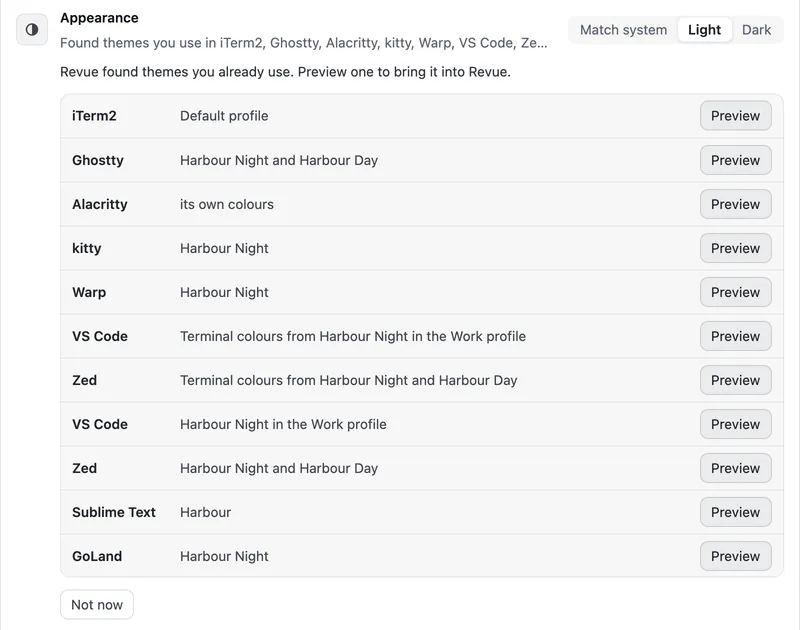
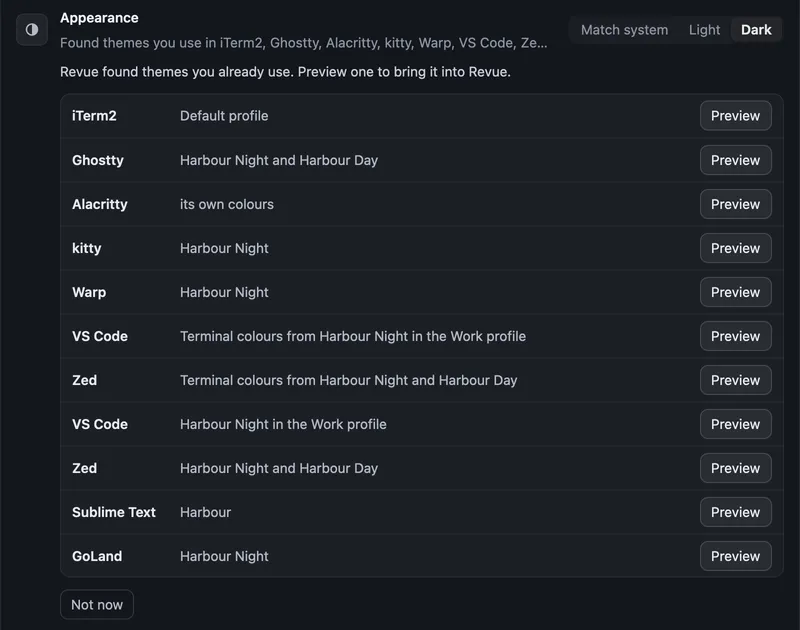
Setup offers the same the first time you open Revue. It lists the themes it found in your editors and terminals, and Preview shows one in Revue before you keep it.
Make your own
Section titled “Make your own”To change any colour, open a theme picker and choose Customise current theme, or choose New from in Settings › Appearance › Custom themes to start from another theme. The editor changes the background, text, line numbers, links, added and removed lines, hunk headers, search matches and selection, and warns when text gets hard to read. Your themes are listed in Custom themes, where you can duplicate, edit or remove them.
Fonts and zoom
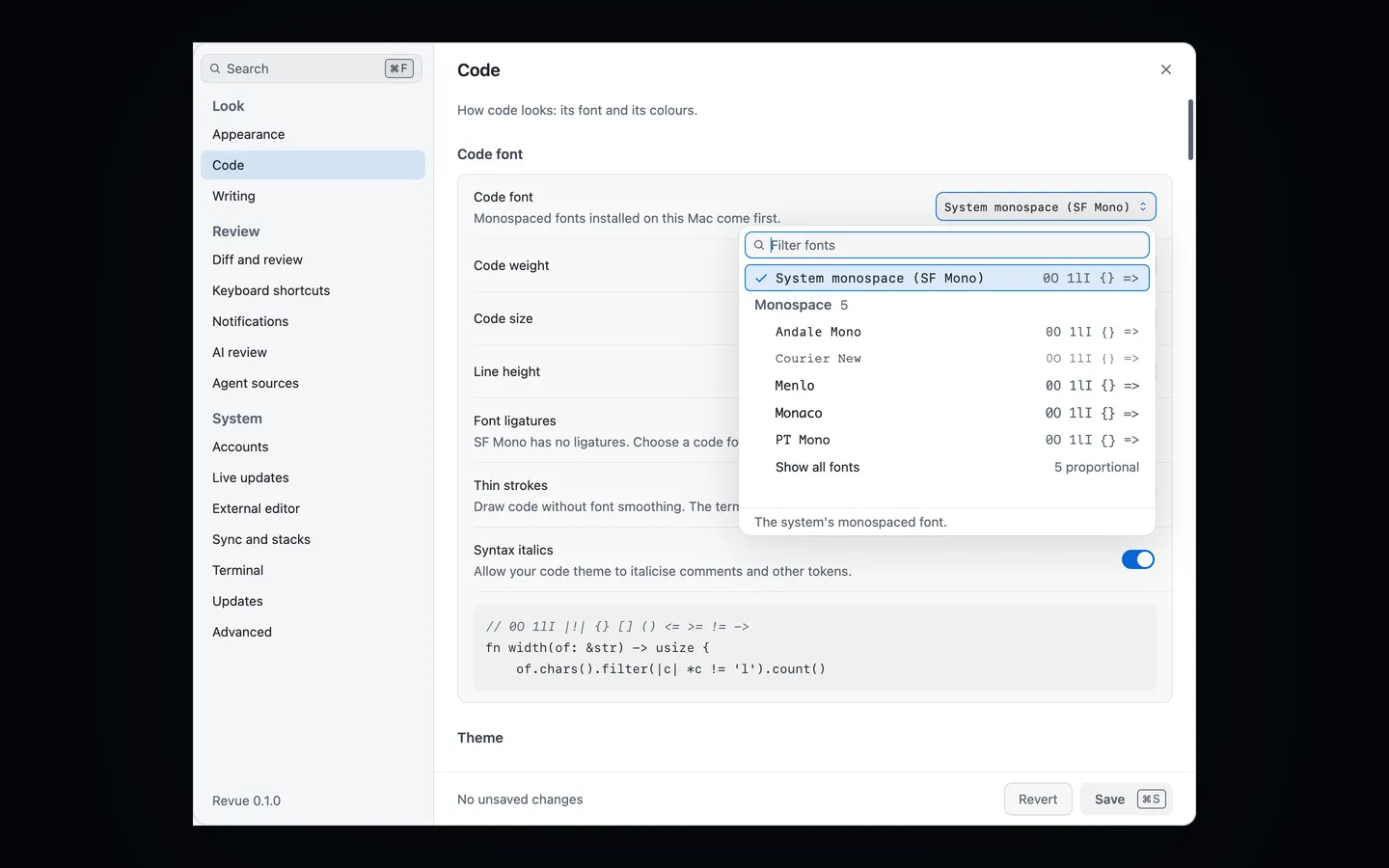
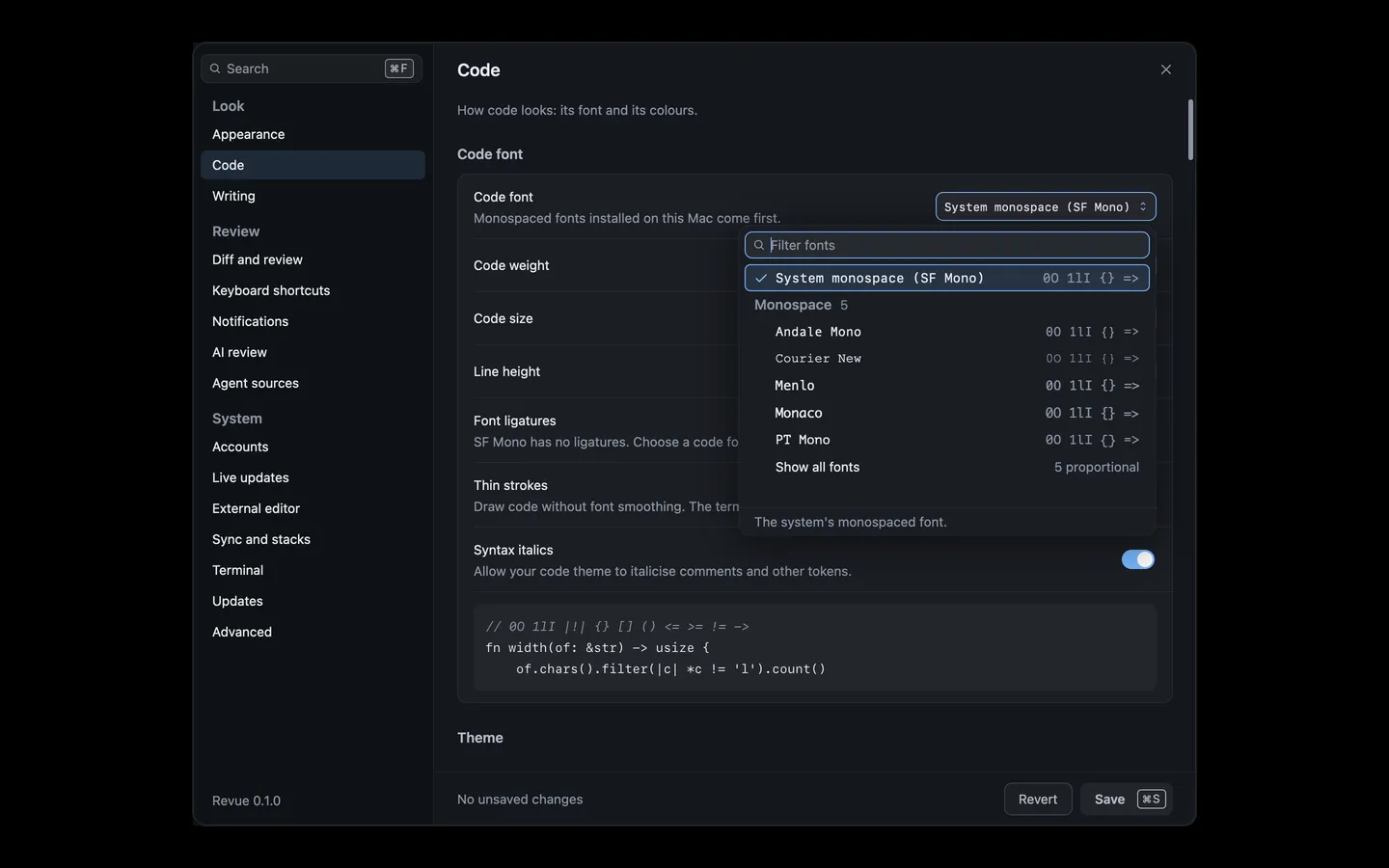
Section titled “Fonts and zoom”Each kind of text has its own font, weight, size and line height:
- Interface text in Settings › Appearance. Its size moves every other interface size with it.
- Code in Settings › Code, with ligatures, thin strokes and syntax italics.
- What you write, pull request titles and descriptions and comments, in Settings › Writing.
- The terminal in Settings › Terminal.
View › Zoom In and Zoom Out scale the interface from 80% to 140%, the same as Interface zoom in Settings › Appearance. Actual Size goes back to 100%.
| Action | Key |
|---|---|
| Zoom in | ⌘= |
| Zoom out | ⌘- |
| Actual size | ⌘0 |
| Setting | Where | Options | Default |
|---|---|---|---|
| Interface zoom | Settings › Appearance | 80% to 140%, in steps of 5 | 100% |
| Interface font | Settings › Appearance | System | |
| Interface text size | Settings › Appearance | 13 pt to 16 pt, in steps of 0.5 | 13.5 pt |
| Code font | Settings › Code | System | |
| Code size | Settings › Code | 10 pt to 18 pt, in steps of 0.5 | 13 pt |
| Line height | Settings › Code | 1.2× to 2×, in steps of 0.05 | 1.7× |
Related
Section titled “Related”- Use the terminal to import a terminal theme.
- Settings › Appearance