Notifications
Revue can tell you when something you’re waiting for happens while you work in another app: a review finishing, checks passing, a new comment. Inside the window, notices tell you what Revue did and what went wrong.
Turn them on
Section titled “Turn them on”Desktop notifications are off until you turn them on.
- Open Settings › Notifications.
- Turn on Desktop notifications, and Notification sound if you want one.
- Choose Save. The first time, macOS asks whether Revue may send notifications. Choose Allow.
The Permission row at the top says what macOS allows. If you said no, choose Open System Settings and turn on notifications for Revue there.
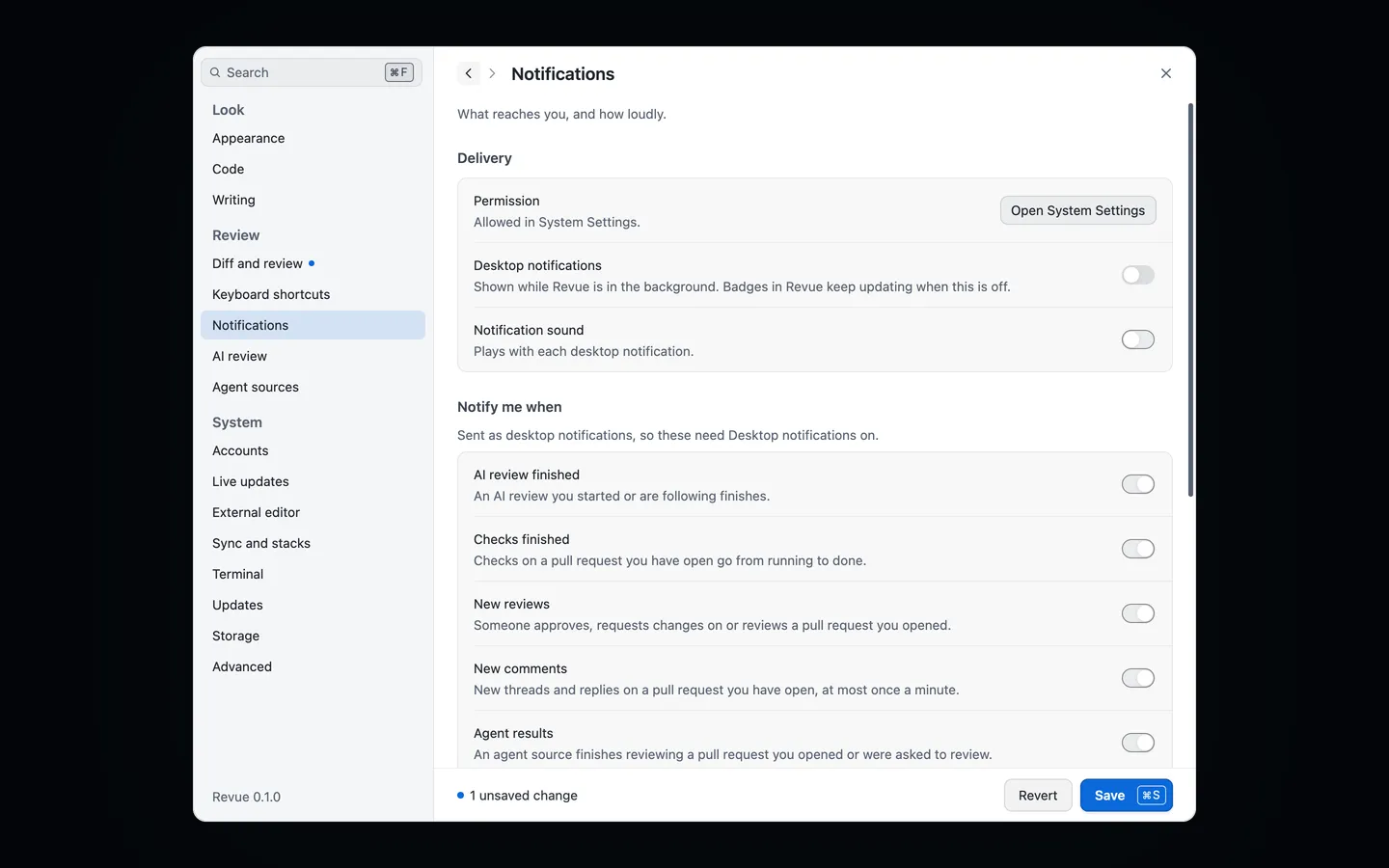
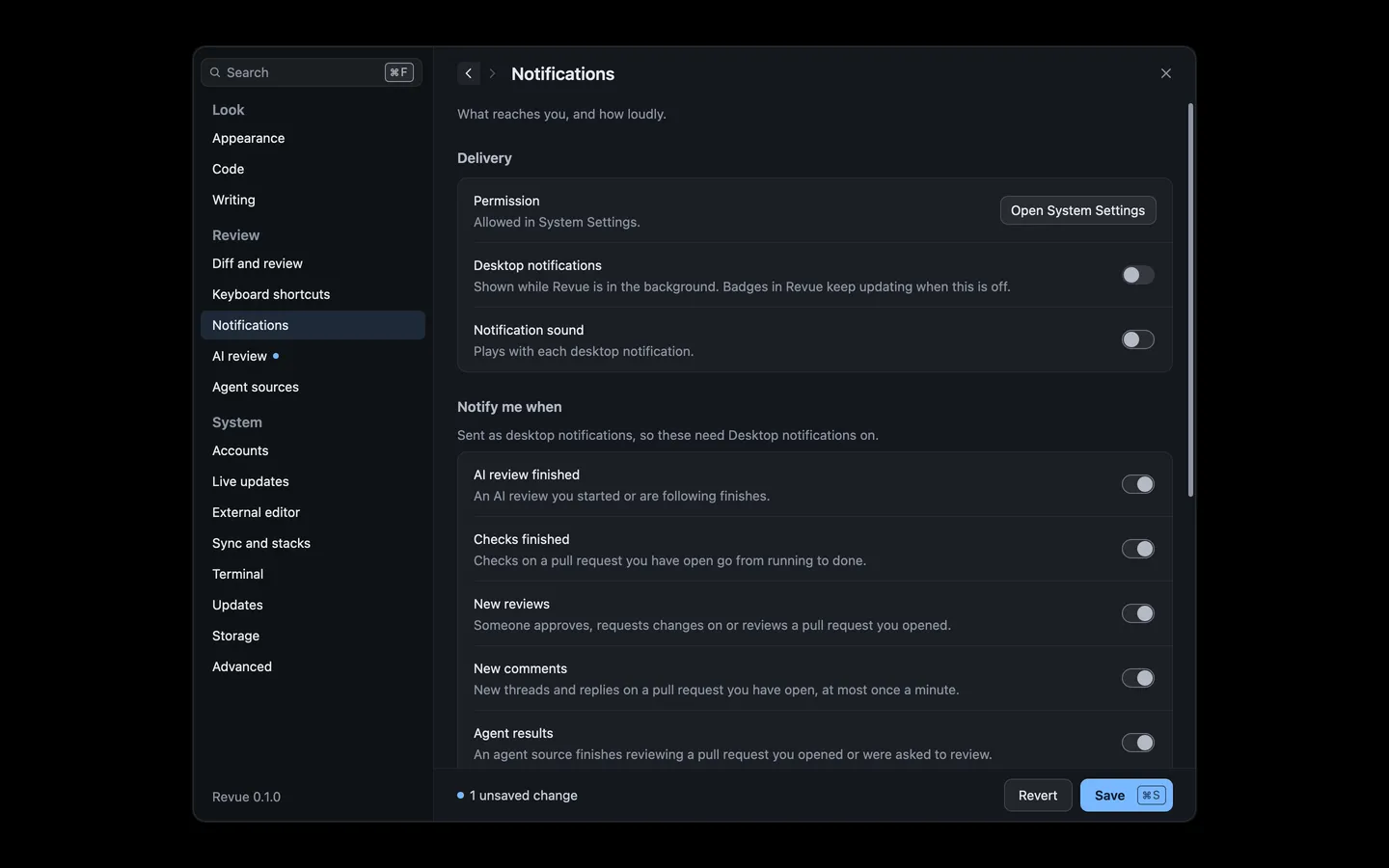
Desktop notifications show only while Revue is in the background. Badges in Revue keep updating either way.
What can notify
Section titled “What can notify”Under Notify me when, each kind has its own switch:
| Setting | Where | Options | Default |
|---|---|---|---|
| AI review finished | Settings › Notifications | On or off | On |
| Checks finished | Settings › Notifications | On or off | On |
| New reviews | Settings › Notifications | On or off | On |
| New comments | Settings › Notifications | On or off | On |
| Agent results | Settings › Notifications | On or off | On |
| Comments addressed | Settings › Notifications | On or off | On |
| New snapshot | Settings › Notifications | On or off | On |
New snapshot needs When a new snapshot arrives set to Notify in Settings › Sync and stacks.
Quiet hours
Section titled “Quiet hours”Turn on Use quiet hours to mute desktop notifications and sounds between two times, in your Mac’s time zone. Badges keep updating.
| Setting | Where | Options | Default |
|---|---|---|---|
| Use quiet hours | Settings › Notifications | On or off | Off |
| Starts | Settings › Notifications | A time of day | 22:00 |
| Ends | Settings › Notifications | A time of day | 08:00 |
Notices in the window
Section titled “Notices in the window”Inside the window, notices stack in the corner of the diff. Information and success notices leave on their own after a moment. Warnings and errors stay until you close them or act on them. An error’s Show details has what git, GitHub or the model said, with its error code, a Copy button and Learn more, which opens what to do about that code in Error codes.
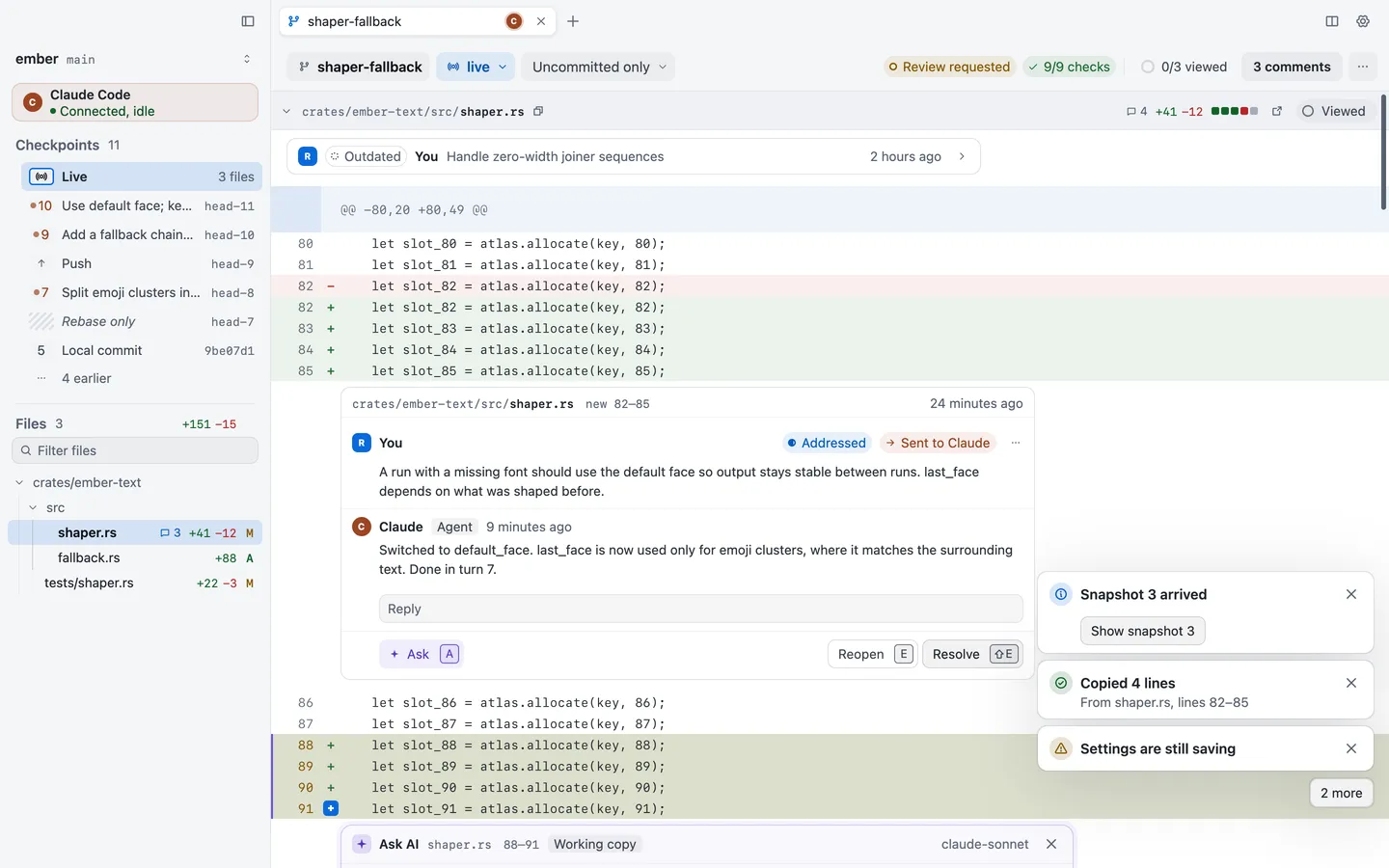
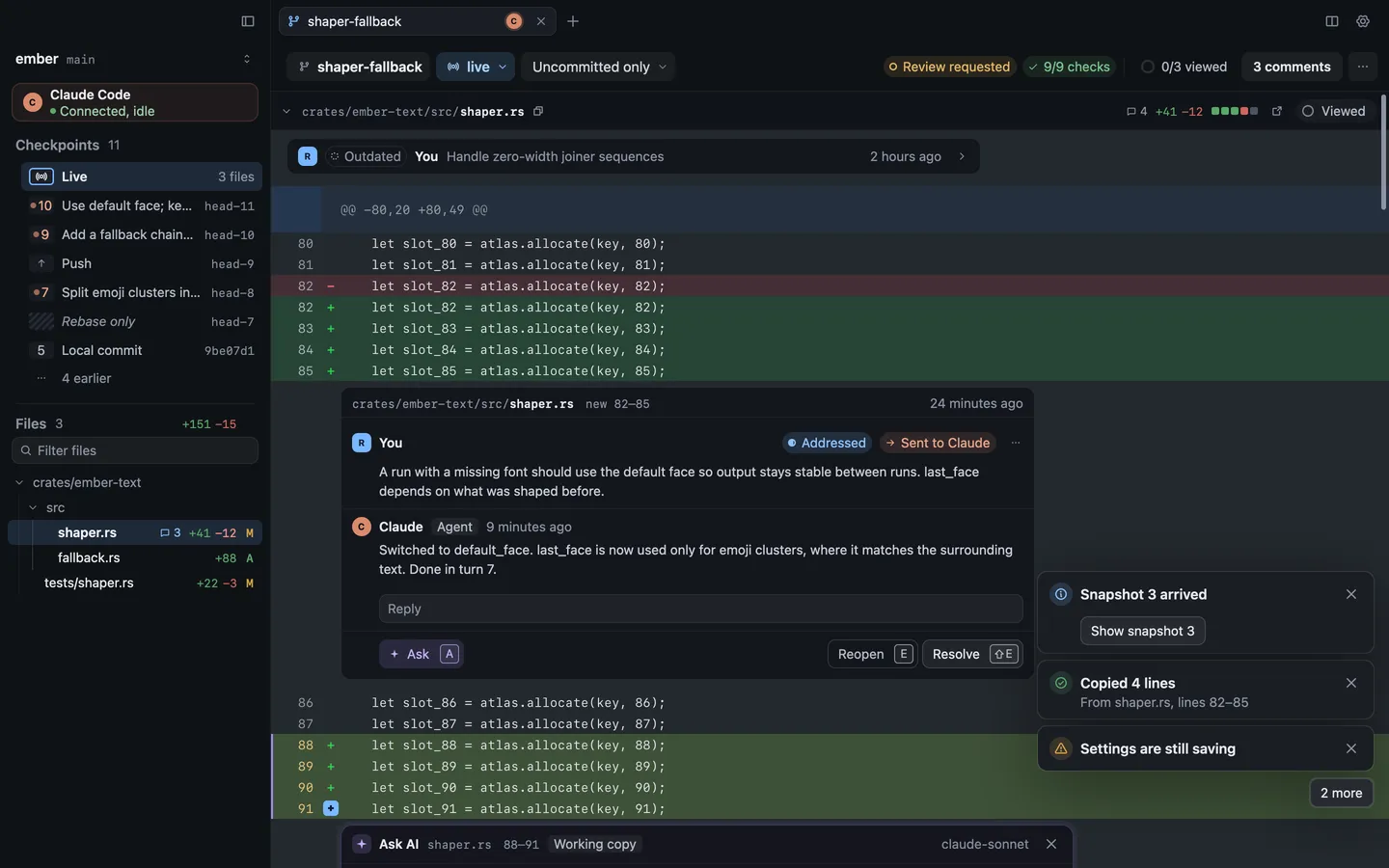
Window › Focus Notices moves the keyboard to the newest notice, so you can take its buttons with ⇥ and ↩. Esc goes back to where you were. Window › Dismiss Notices closes them all.
| Action | Key |
|---|---|
| Focus notices | ⌃⌘N |