Install Revue
Revue runs on a Mac with Apple silicon (M1 or later) and macOS 14.5 or later. Version 0.1.0 has no build for Intel Macs. Installing it takes a few minutes, most of them in Setup, which checks what your Mac has and helps you add what’s missing.
Before you start
Section titled “Before you start”You need:
- The Revue disk image (DMG). Whoever invited you to Revue sends a download link. See Get help if you don’t have one.
- git. If your Mac doesn’t have it yet, Setup gives you the command that installs Apple’s command line tools.
- A GitHub account with access to the repositories you review.
These are optional, and you can add them later:
- The GitHub CLI (
gh), signed in. Revue uses its sign-in, so you don’t sign in twice. - Claude Code or Codex, for AI review and for reviewing your agent’s work.
- gh-stack, if you work with stacked pull requests.
Install the app
Section titled “Install the app”- Open the DMG.
- Drag Revue onto Applications in the window that opens.
- Eject the disk image.
- Open Revue from Applications, Launchpad or Spotlight.
Run Setup
Section titled “Run Setup”The first time Revue opens, Setup fills the window. It has three screens: Set up, Learn and Open. To come back to it later, choose Help › Set Up Revue.
Set up
Section titled “Set up”The first screen checks your Mac. It has one row each for git, GitHub, gh-stack, AI review, the Claude Code plugin, an agent source, the command line tool, your editor, appearance and updates. Each row says what it found, and offers to fix what’s missing.
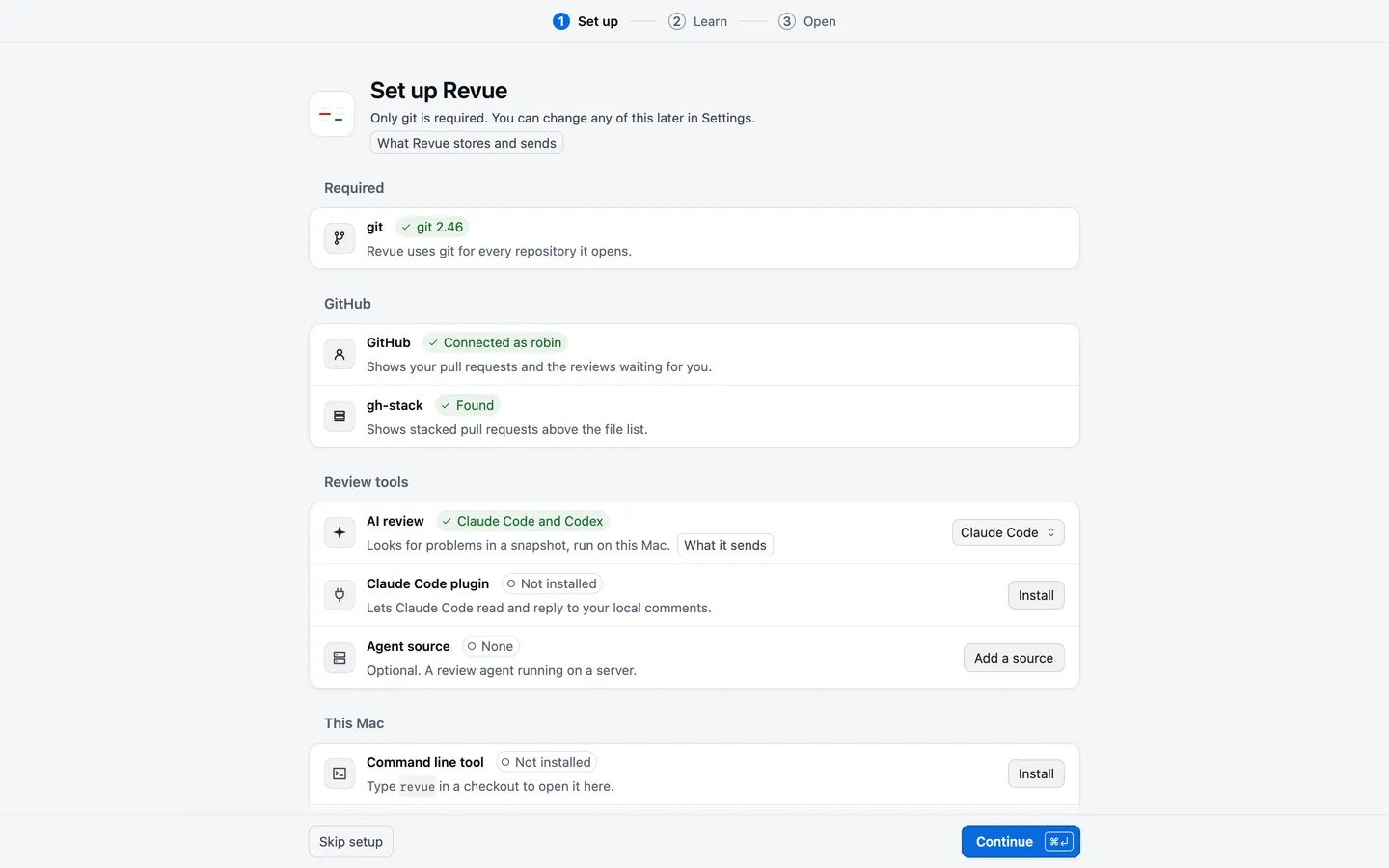
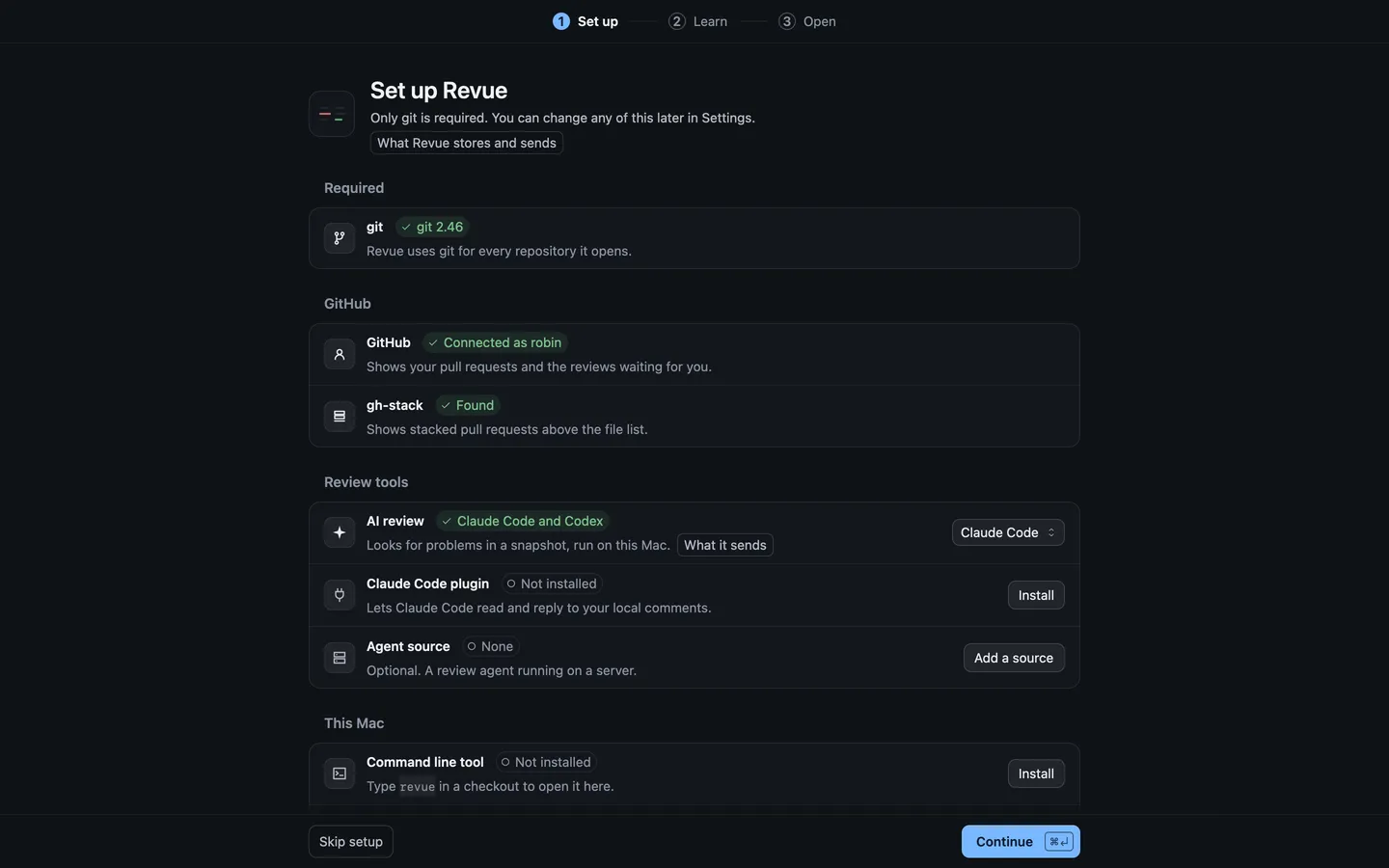
Only git is required. Continue stays off until Setup finds it.
- git missing: the row says “Install Apple’s tools: xcode-select –install”. Choose Copy command, paste it into Terminal and follow the installer. When it finishes, choose Check again.
- GitHub: if the GitHub CLI is signed in, Revue uses that sign-in at once. Otherwise choose Sign in with a code. See Sign in to GitHub.
Everything else can wait. Skip setup leaves Setup and goes straight to the window.
The second screen, “Three things to know first”, sums up how Revue differs from reviewing on github.com:
- One tab, one change. Each tab reads one thing: a pull request, a branch, your working copy or a comparison.
- Each push is a snapshot. Snapshot 2 shows the full pull request as of its second push. To see only what changed since snapshot 1, compare the two with Range.
- Comments wait until you submit. A comment you write goes to your pending review. Only you can see it until you choose Submit review.
How Revue works says more about each.
The last screen lists pull requests waiting for your review and your own, beside Open a folder and your recent folders. Choose one to start, or Take the tour: about ten minutes, in six parts, on a sample repository. You can stop at any point. Your first review picks up from here.
Install the command line tool
Section titled “Install the command line tool”The revue command opens a checkout or a pull request in Revue from your terminal. Claude Code and Codex also use it
to read and answer your comments.
- Choose Revue › Install Command Line Tool. Setup opens at its Command line tool row. During Setup, you can choose Install on that row instead.
- Revue asks “Install the revue command?” and shows the path it writes,
/usr/local/bin/revue. Choose Install. - If that folder needs an administrator, the row says “Revue couldn’t write to /usr/local/bin. Run this in Terminal
instead:” with a
sudocommand. Choose Copy command, paste it into Terminal and enter your password. Then choose Check again.
Then type revue in a checkout to open it in Revue, or revue --pr owner/repo#123 to open a pull request from
anywhere. See Command line.
If you move Revue later, a notice says “The revue command needs updating”. Choose Point it here. Not now hides the notice until you update Revue.
Connect Claude Code (optional)
Section titled “Connect Claude Code (optional)”The Revue plugin for Claude Code lets a Claude Code session read the comments you send it, reply and mark them addressed.
- Install Claude Code and sign in to it.
- Choose Revue › Install Claude Code Plugin. Settings opens on AI review and asks “Install the Claude Code plugin?”. Choose Install. The plugin row in Setup does the same.
- Start a new Claude Code session in a checkout you’ve opened in Revue.
Claude Code plugin covers updating and removing it, and other ways to install it. Using Codex instead? Codex has no plugin. Follow Use Revue with Codex.
Turn on updates
Section titled “Turn on updates”Revue asks before it checks for updates. Setup’s Updates row only says what a check sends. Once you put Setup away, a notice asks “Check for updates automatically?”. Choose Turn on, and Revue asks updates.ryc.sh for a new version about every hour. Not now leaves automatic checks off.
You can change your answer, and how often Revue checks, in Settings › Updates. To have new versions download in the background and install the next time Revue quits, also turn on Download and install updates automatically there. Revue › Check for Updates works either way. See Update Revue.
Next steps
Section titled “Next steps”- Your first review
- Review a pull request
- Keyboard shortcuts
- Something not working? See Common problems.