Update Revue
Revue updates itself from updates.ryc.sh. Once you allow it, it checks in the background and tells you when a new version is ready. You can also check at any time.
Automatic checks
Section titled “Automatic checks”Revue doesn’t check on its own until you say it may. The first time you open Revue, after Setup, a notice asks “Check for updates automatically?” Choose Turn on, or Not now to check only when you ask. What is sent shows exactly what each check carries: the version you have and an update access code that every copy shares, with no account.
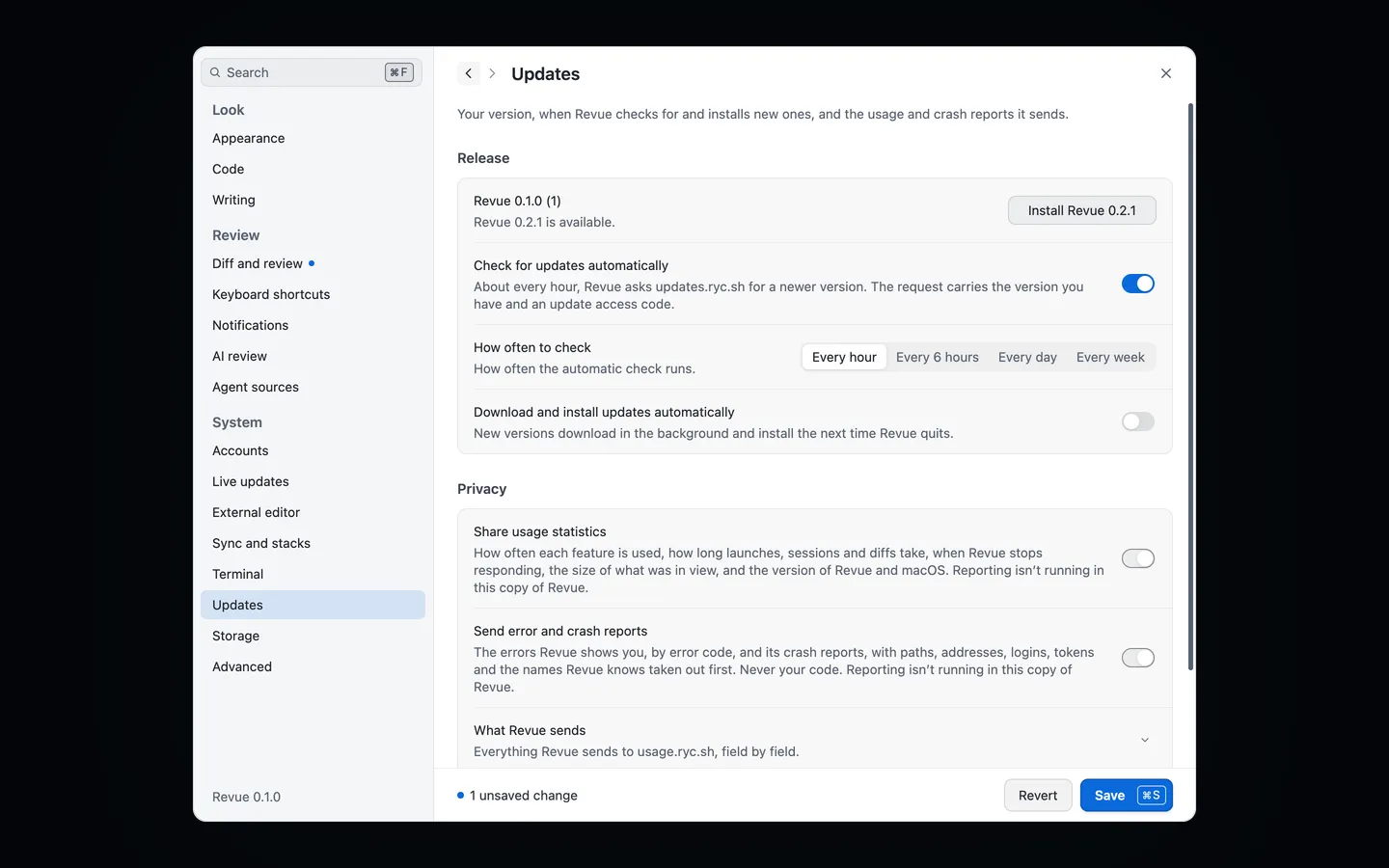
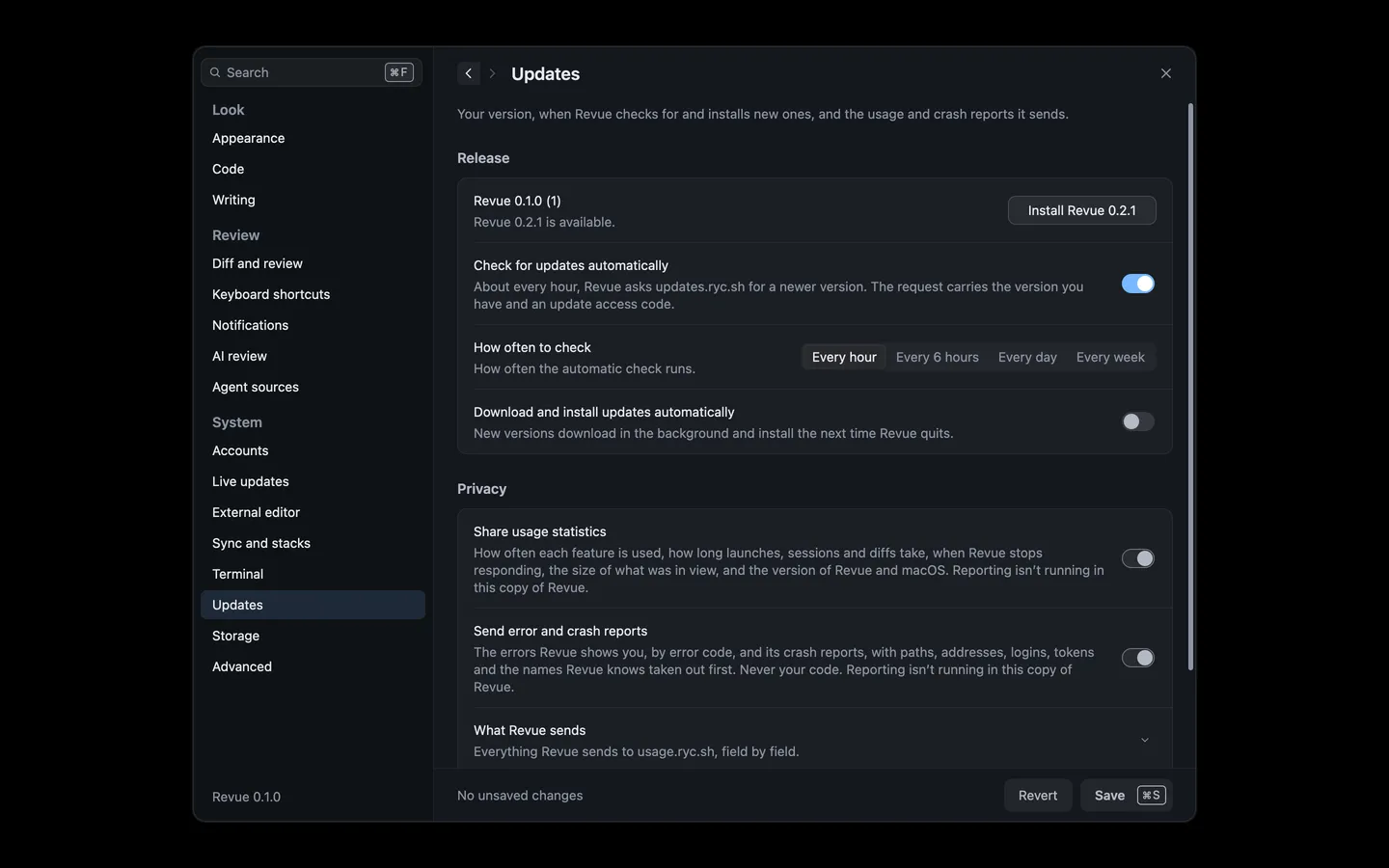
You can change your answer later in Settings › Updates, with Check for updates automatically. How often to check sets the interval: every hour (the default), every 6 hours, every day or every week.
Check now
Section titled “Check now”Choose Revue › Check for Updates, or Check for updates in Settings › Updates, at any time. This works whether or not automatic checks are on. Settings › Updates shows your version and what the last check found.
When updates install
Section titled “When updates install”When Revue finds a new version, an update window shows it with its notes, and you choose whether to install it now. Settings › Updates also says that a new version is available until you do.
To skip the asking, turn on Download and install updates automatically in Settings › Updates. New versions then download in the background and install the next time Revue quits. It needs automatic checks on.
After an update, a notice offers What’s New, the release notes for the version you now have. Help › What’s New in Revue shows them any time, and the Changelog has every version.
Run from Applications
Section titled “Run from Applications”Revue can only update itself from your Applications folder. If you opened it from the disk image, or macOS is running it from a temporary location, Settings › Updates says so. Quit Revue, drag it to Applications, eject the disk image and open Revue from Applications. If your account can’t write to the folder Revue is in, move it to an Applications folder you own. See Common problems.