Use the command palette
The command palette finds almost anything in Revue from one box: a tab, a file, a branch or pull request, a command, a line or a symbol. Use it when you know what you want but not where it is.
Open it
Section titled “Open it”Press ⌘K, or choose Go › Command Palette. ⇧⌘P opens it too. Type to narrow the list, move with ↑ and ↓, and press ↩ to choose. Esc closes it.
What it searches
Section titled “What it searches”With nothing typed, the palette lists your tabs and the commands you ran last. As you type, it lists matches in these groups:
- Tabs: the tabs open in this window.
- Commands: everything in the menus, grouped as Review, Navigate, Panes and so on.
- Files in this comparison: the files in the change you’re reading.
- Branches and pull requests: in the checkout you have open.
- Worktrees: the checkout’s other worktrees.
- GitHub: choose Search GitHub to look for pull requests on GitHub that match what you typed.
Commands only
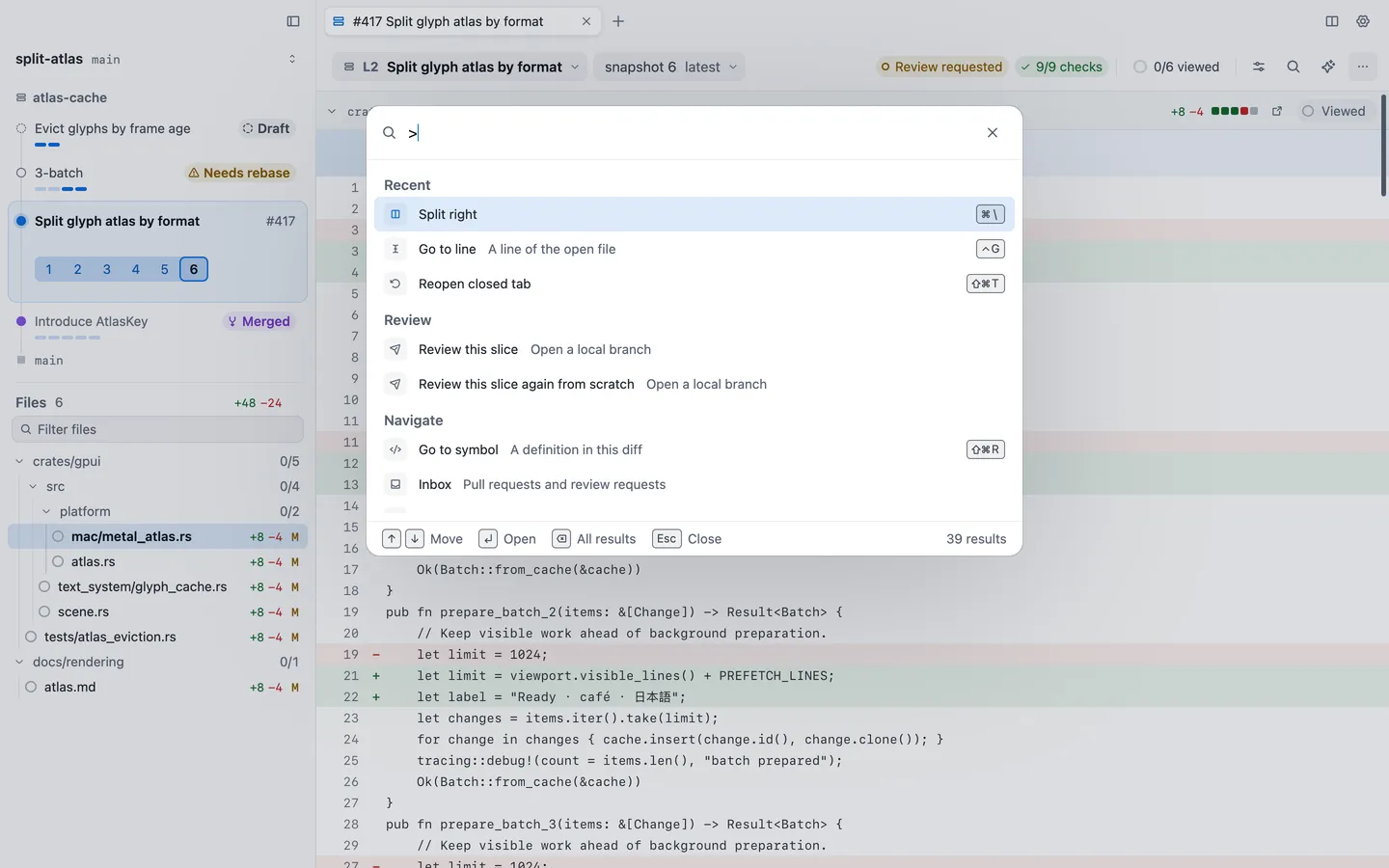
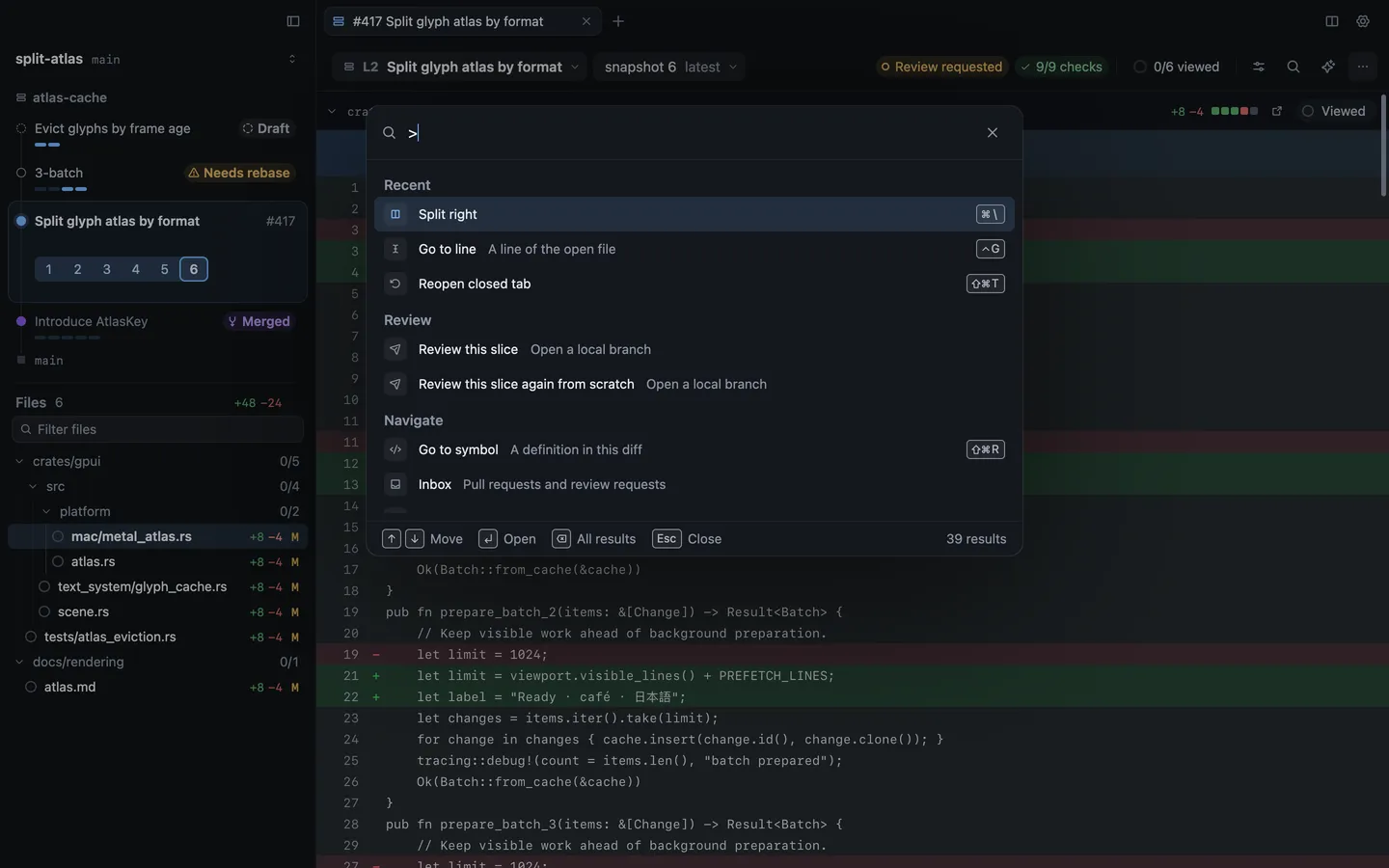
Section titled “Commands only”Type > first to list only commands. It’s the quickest way to find a command whose menu you don’t remember, and the
list shows each command’s key, so you learn it as you go. The last five commands you ran are at the top, under Recent.
Go to line and symbol
Section titled “Go to line and symbol”Type : and a line number to jump to that line in the current file. Type @ and part of a name to list the
functions, types and other symbols in the diff. Go › Go to Line (⌃G) and Go › Go to Symbol
(⇧⌘R) open the palette with those already typed. Go › Go to File (⌘P) finds a
file in the change by name.
| Action | Key |
|---|---|
| Command palette | ⌘K |
| Go to file | ⌘P |
| Go to line | ⌃G |
| Go to symbol | ⇧⌘R |