Use the terminal
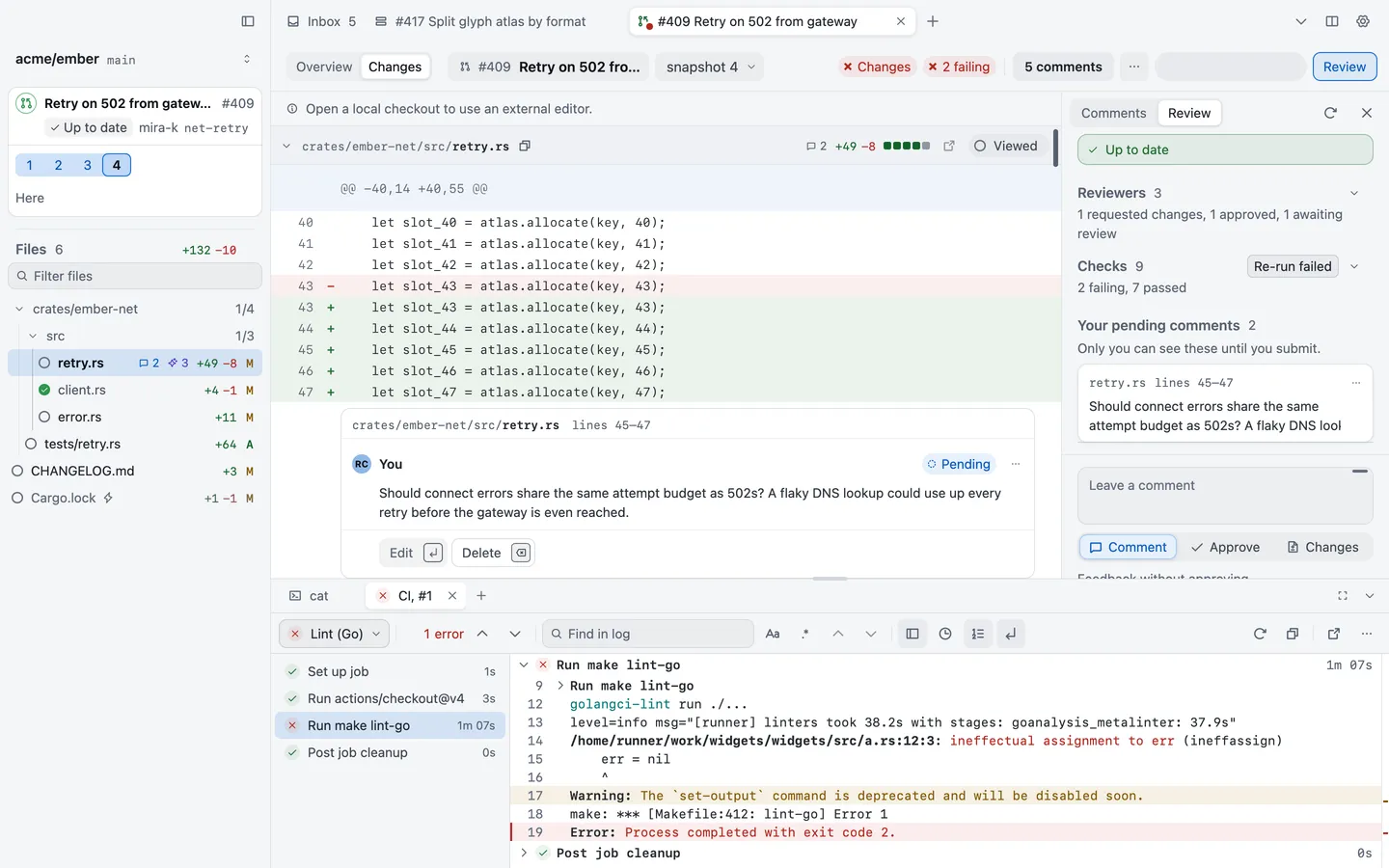
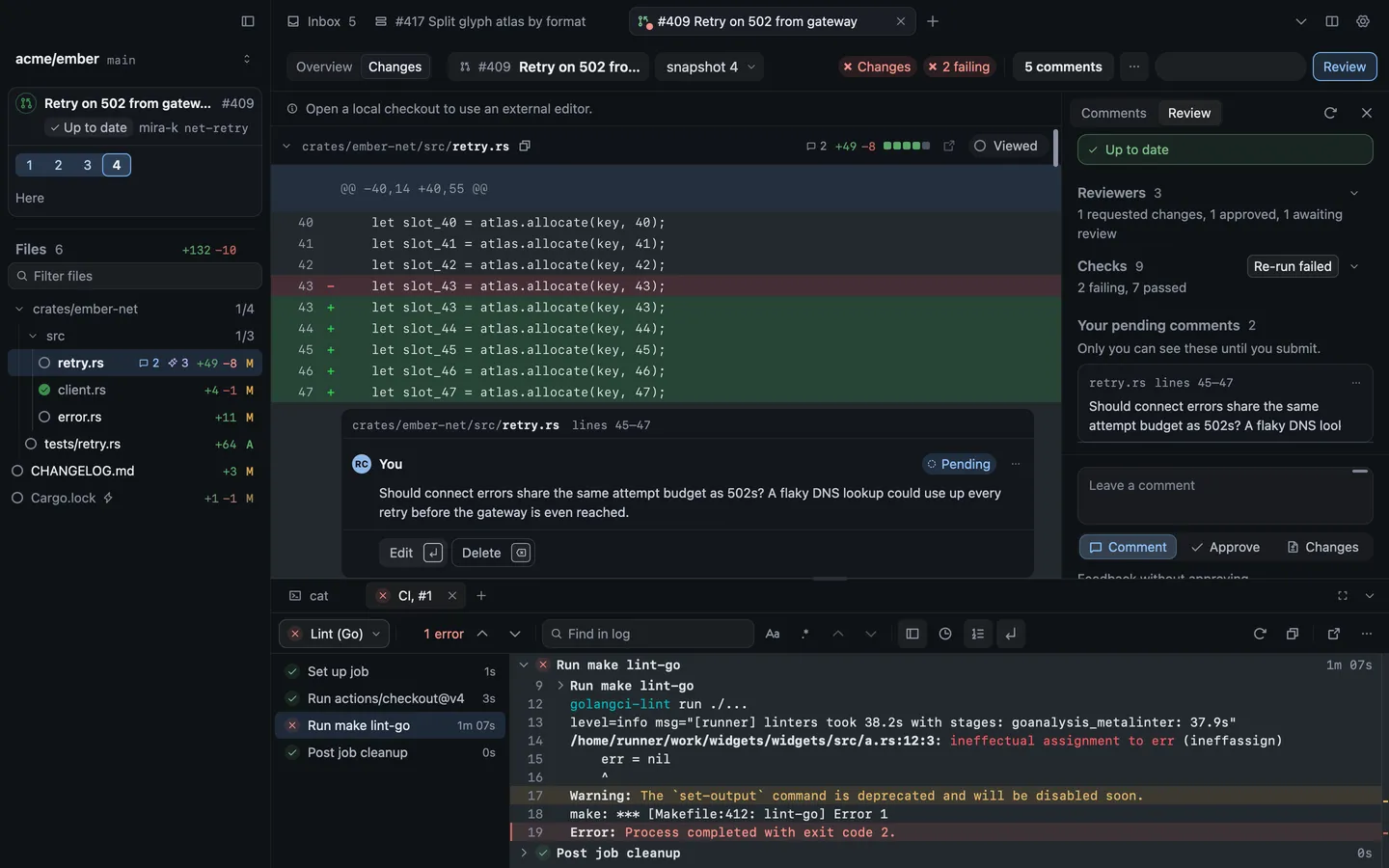
Revue has a terminal under the diff, so you can run tests, build or talk to Claude Code without leaving the change you’re reading.
Show the bottom pane
Section titled “Show the bottom pane”Press ⌃`, or choose View › Show Bottom Pane, to show or hide the bottom pane. The key works from anywhere, including a text field or the terminal itself. Drag the pane’s top edge to change its height. The height is the same whichever tab the pane shows, and Revue keeps it between launches.
Terminal tabs
Section titled “Terminal tabs”Press ⌃⇧`, or choose View › Terminal › New Terminal Tab, to open a terminal. It starts in the folder of the terminal you’re in, or else the checkout or layer you were reading last. The bottom pane also holds CI logs you open from a pull request’s checks, each as a tab beside your terminals.
View › Terminal has the terminal’s own commands, such as Clear Terminal (⌘L) and Select Command Output (⇧⌘A), which selects what the last command printed.
| Action | Key |
|---|---|
| Show bottom pane | ⌃` |
| New terminal tab | ⌃⇧` |
| Clear terminal | ⌘L |
| Select command output | ⇧⌘A |
| Previous prompt | ⌘↑ |
| Next prompt | ⌘↓ |
Import a terminal theme
Section titled “Import a terminal theme”To make Revue’s terminal look like the one you use, open Settings › Terminal. Revue lists the terminals it found on your Mac, from iTerm2, Terminal, Ghostty, Alacritty, kitty, WezTerm and Warp. Choose Import beside one, and Revue shows what it will take (colours, font, spacing, cursor and Option keys) and where it read them. Choose Import, then Save in Settings to keep it.
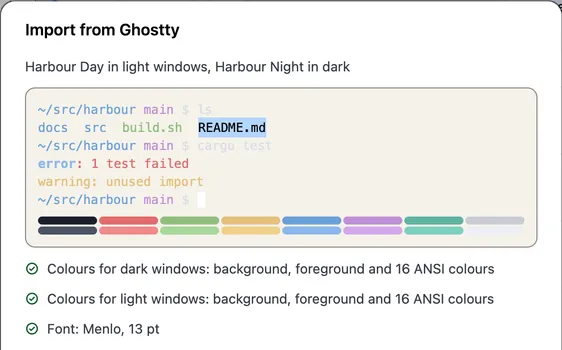
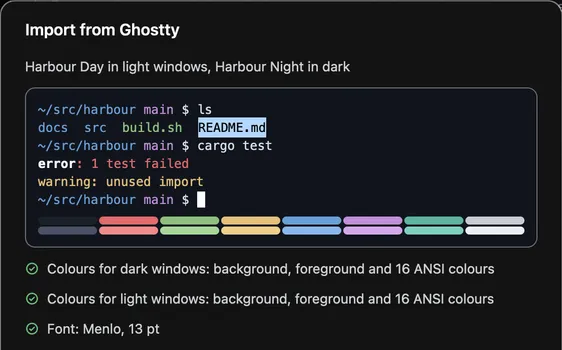
Settings › Terminal also sets the font, spacing, cursor and colours by hand. Terminal colours set to Match takes the colours from your code theme, so the terminal turns light and dark with the diff.
Claude Code in the terminal
Section titled “Claude Code in the terminal”Review › Start Claude Code opens a terminal and runs Claude Code in it. Claude Code started any other way in a Revue terminal connects too. Once it’s connected:
- Lines you select in a diff go with your next prompt, and Review › Mention Selection in Claude Code (⇧⌘I) mentions them at once.
- With Review Claude’s edits on, Claude asks before each edit and the edit opens in Revue for you to accept (⌘↩) or reject (⌘⌫).
| Setting | Where | Options | Default |
|---|---|---|---|
| Claude Code command | Settings › Terminal | Claude Code | |
| Share selections with Claude Code | Settings › Terminal | On or off | On |
| Review Claude’s edits | Settings › Terminal | On or off | Off |
To send review comments to Claude Code, see Review Claude Code’s work.