Review a pull request
This guide covers a review from start to finish: reading a pull request, leaving comments and sending your review to GitHub. Your comments wait in your pending review, where only you can see them, until you submit.
Open the pull request
Section titled “Open the pull request”Use whichever is closest:
- From the Inbox. Needs you lists the pull requests waiting for your review. Select one and press ↩.
- From the command palette. Press ⌘K and type the pull request’s number or title.
- From the terminal. Run
revue --pr owner/repo#123. - From a Revue link someone sent you. It opens at the thread it names.
Each pull request opens in its own tab. To read two side by side, split the pane with ⌘\. Open pull requests, branches and folders has more.
Start from the Overview
Section titled “Start from the Overview”A pull request opens on its Overview: the description, a timeline of each push and review, and the threads people have started. When you’ve reviewed it before, the timeline says which snapshot you last reviewed and offers the changes since then.
A column at the Overview’s right keeps Before merge, Checks, Reviewers, labels, assignees and linked issues in sight while the timeline scrolls. In a narrower window, or with the review panel open, the column folds into a row of buttons under the pull request’s header, and each opens its part.
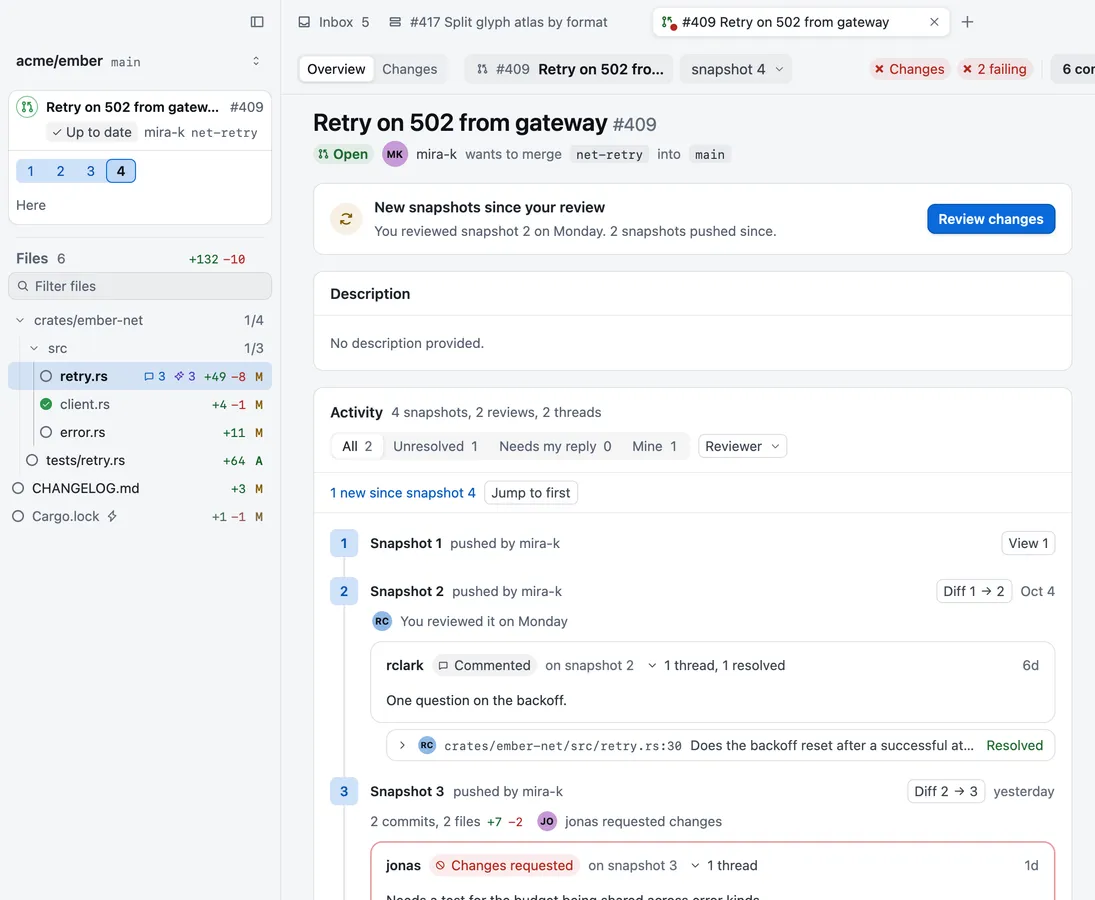
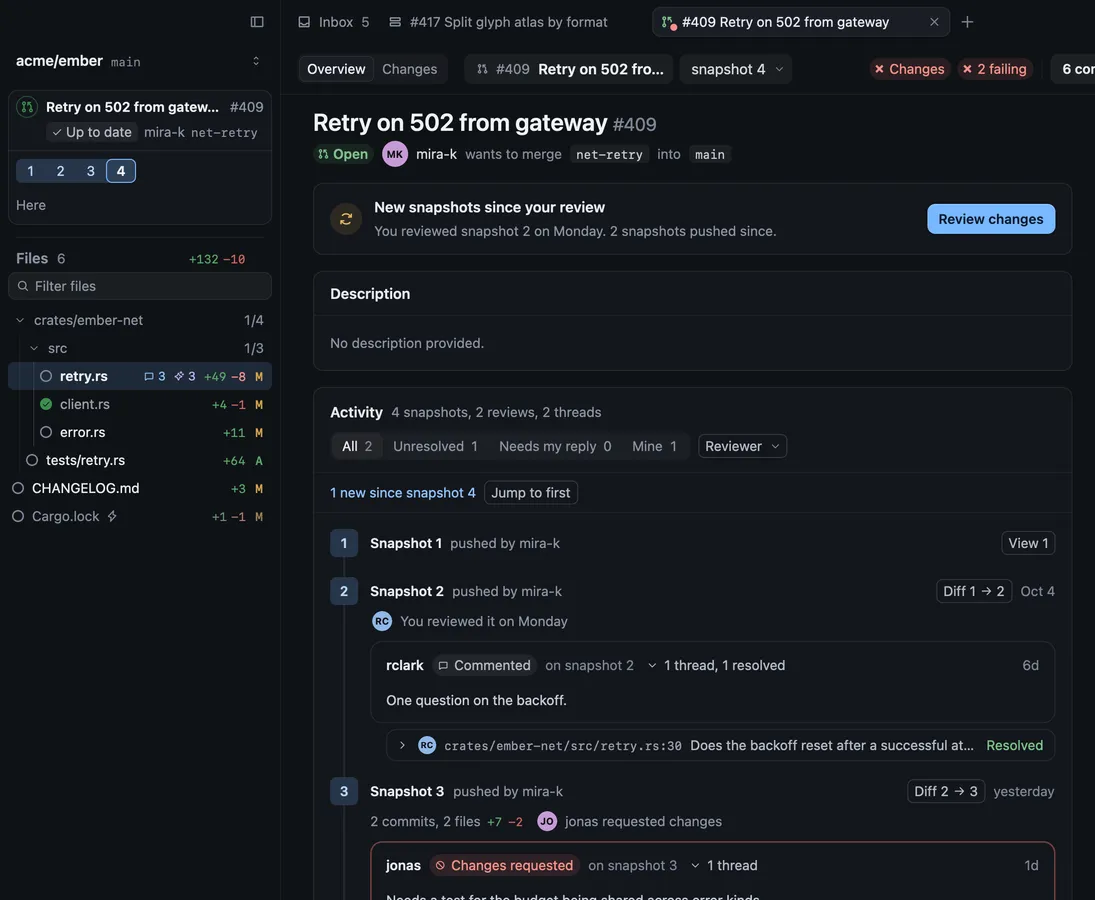
Read the description, then choose Changes at the top left, or press ⌥⌘O. The same key takes you back to the Overview.
Read the changes
Section titled “Read the changes”The sidebar lists the changed files. Generated files and lockfiles are collapsed, with the reason. Choose Show diff in the file’s header to read one, or View › Show All Generated Files.
- Press J and K to move to the next and previous file, or ⌘P to go to a file by name.
- Press U to switch between unified and split layout, and ⌥Z to turn wrapping on or off.
- Press ⌘F to search in the diff.
- To see more of the file around a change, show more lines above or below it, up to the whole file.
- With a checkout of the repository open in Revue, press O to open the file in your editor at the line you’re reading.
Whitespace, context lines and the default layout are in Settings › Diff and review.
Mark files viewed
Section titled “Mark files viewed”Press V when you’ve read a file. Its circle in the sidebar fills in, and the count beside its folder goes up.
A viewed mark stays until that file’s diff changes. If the author pushes again and the file changes, the mark is cleared, so you know to read it again.
Comment and suggest changes
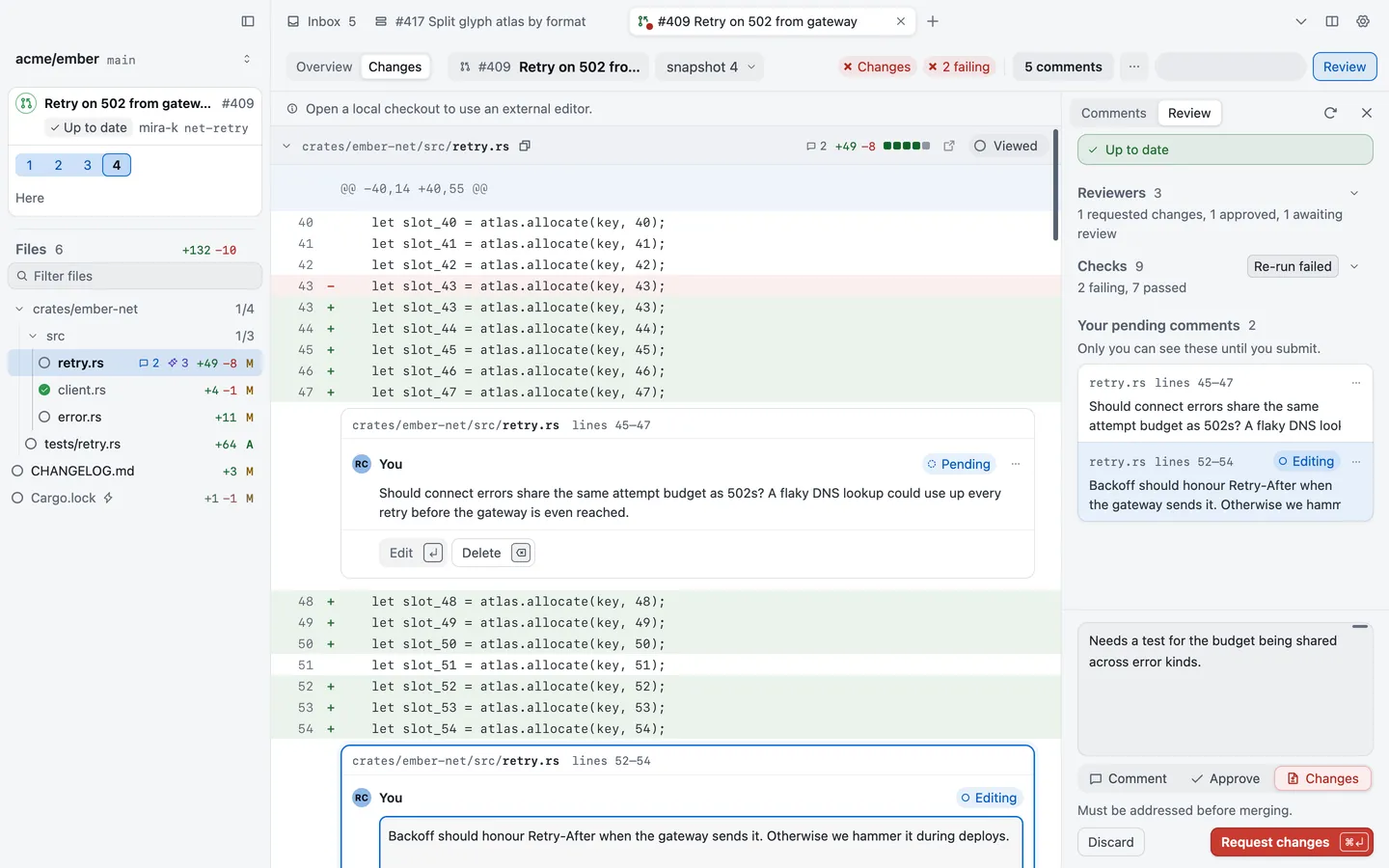
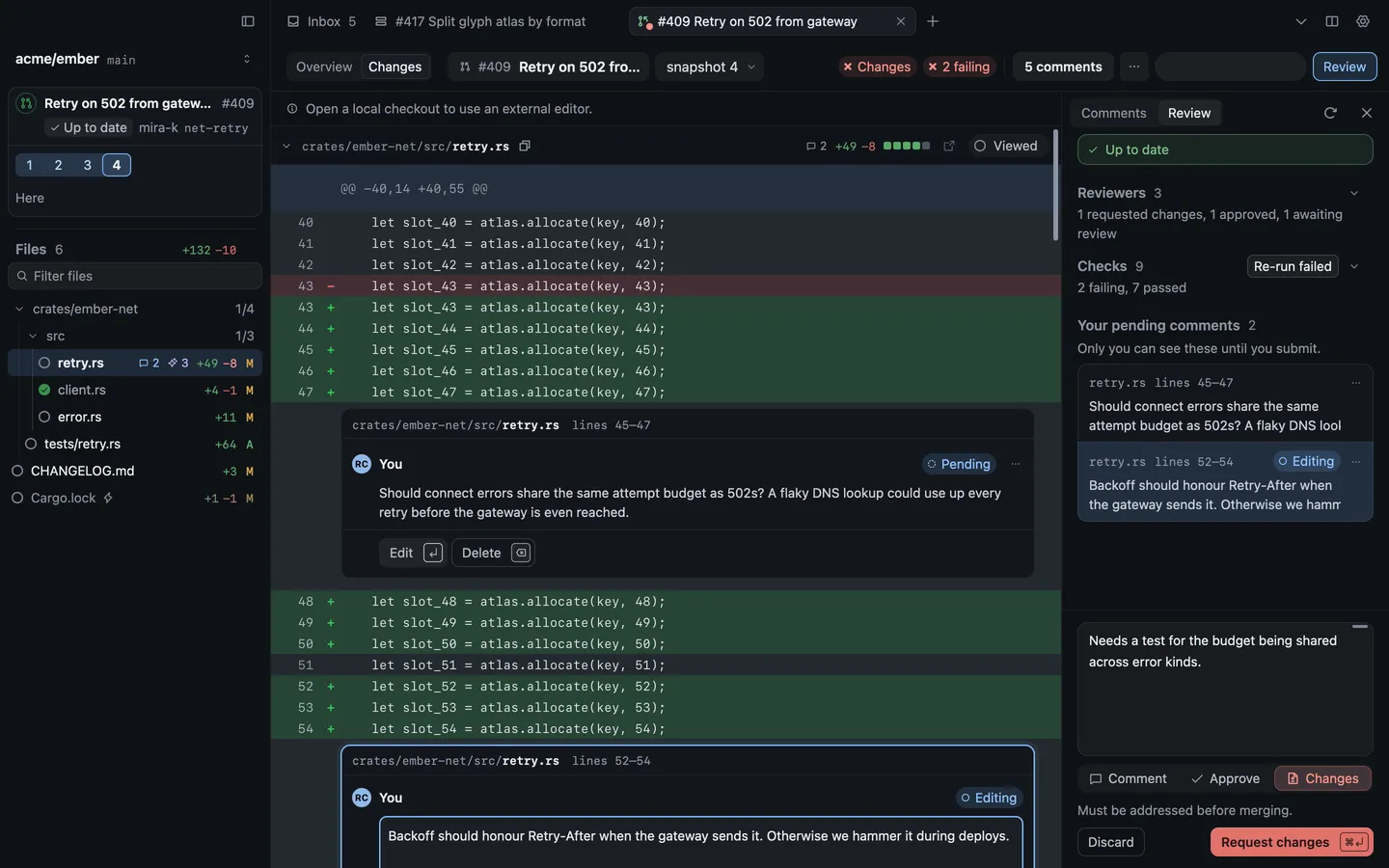
Section titled “Comment and suggest changes”- Comment on lines. Select one or more lines and press C, or choose Comment in the bar over your selection. Choose Add comment or press ⌘↩ to save it.
- Suggest a change. Select lines on the right side, then choose Suggest change in the comment. It becomes a GitHub suggestion the author can accept. Attach image adds an image.
- Reply to a thread. Select the thread and press ↩, or write in its Reply box. A reply to a GitHub thread posts at once. It doesn’t wait for your review.
- Resolve a thread. Press E, or choose Resolve. Resolving a GitHub thread resolves it on GitHub at once.
- Edit or delete your own comment. Press ↩ or ⌫ on it. ⌘. lists everything you can do with a comment.
Your new comments go into your pending review. They’re marked Pending, and only you can see them until you submit.
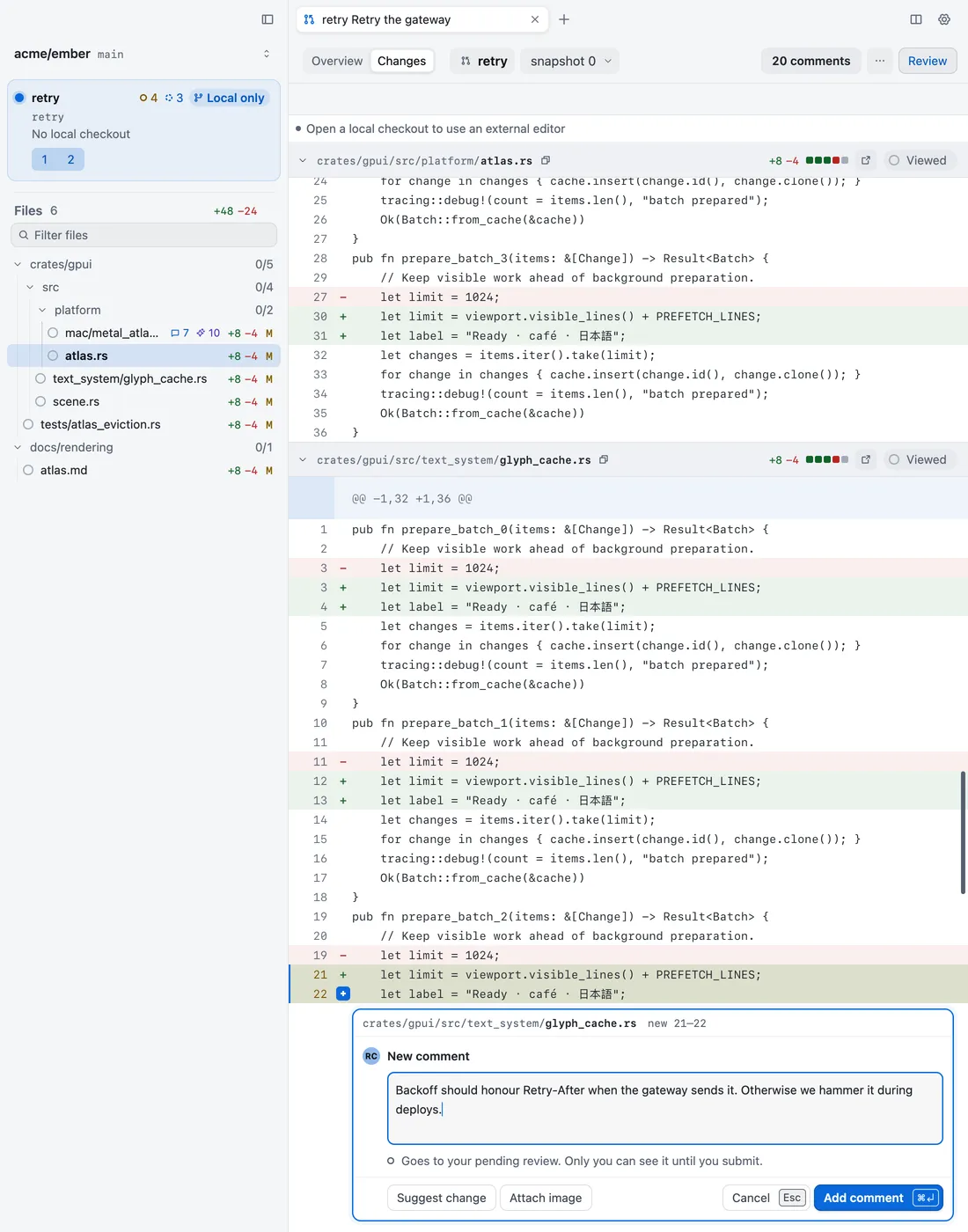
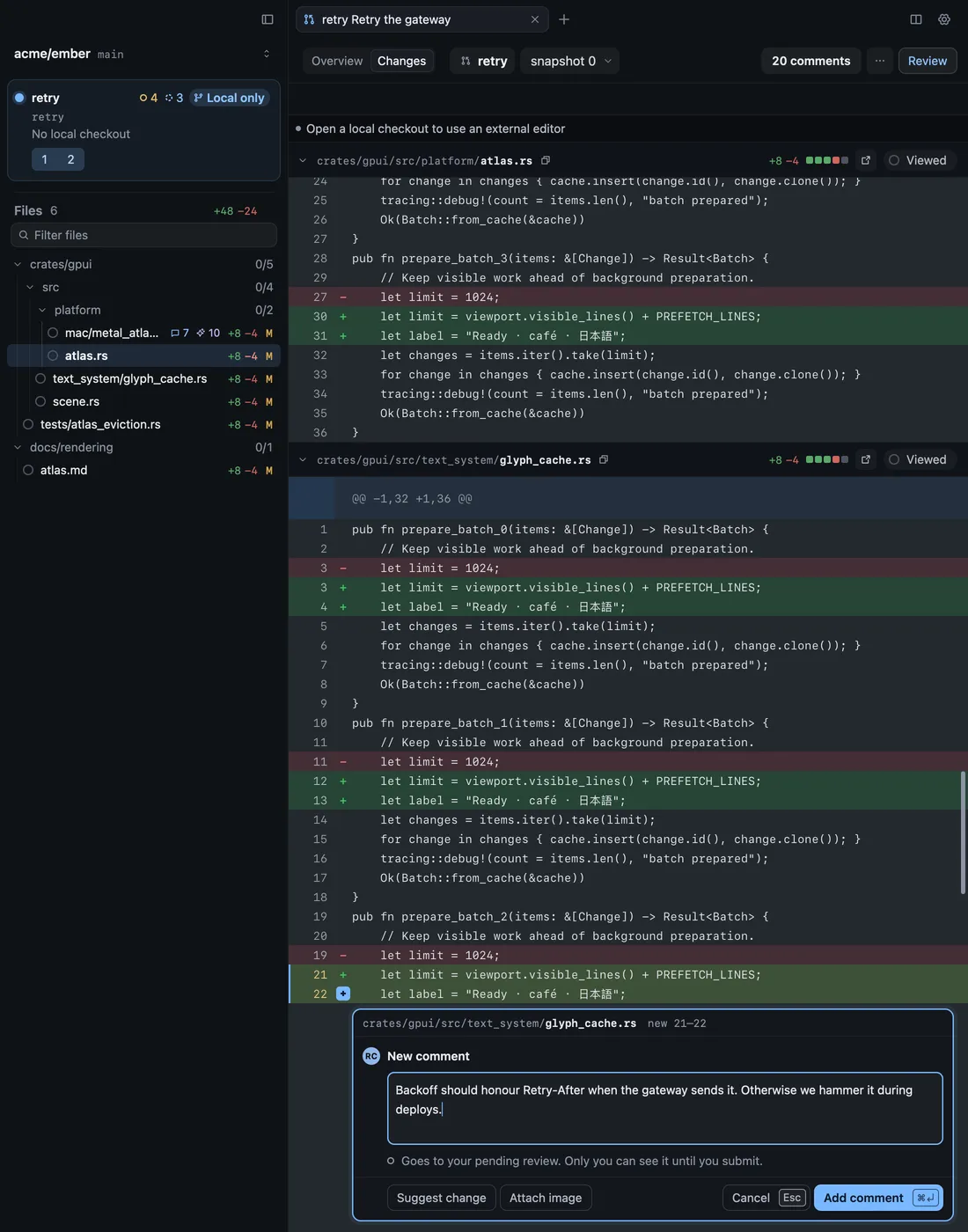
Press N and P to step through unresolved threads. Press ⌥⌘K, or choose the comment count at the top right, to see every comment in one list.
Check CI
Section titled “Check CI”The bar at the top shows how the checks stand, such as how many are failing. Checks, in the Overview’s column and in the review panel, groups each job under its workflow, with Re-run for one that failed and Re-run failed for all of them. A running workflow starts folded to one row.
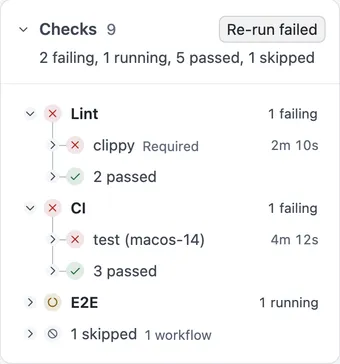
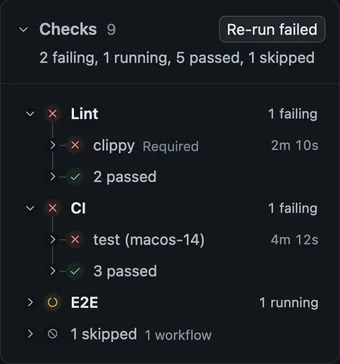
Choose a job to open its log in a tab of the bottom pane. A failed job opens at its failed step. You can search the log, and press F8 and ⇧F8 to step through its errors. Re-run job in the log’s bar runs a failed job again and follows the new attempt.
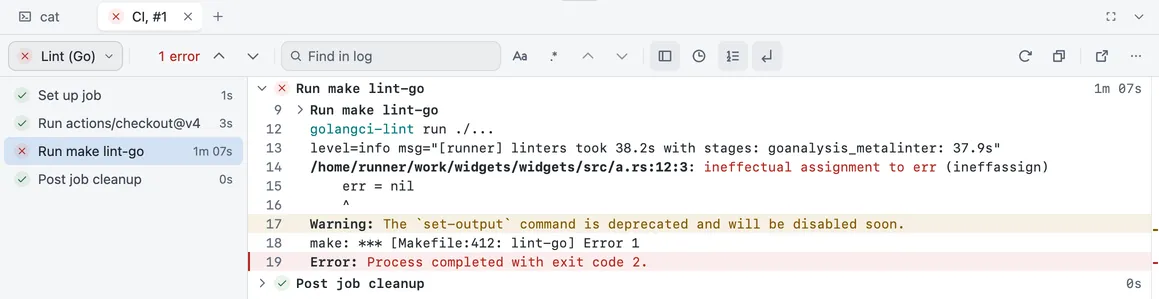
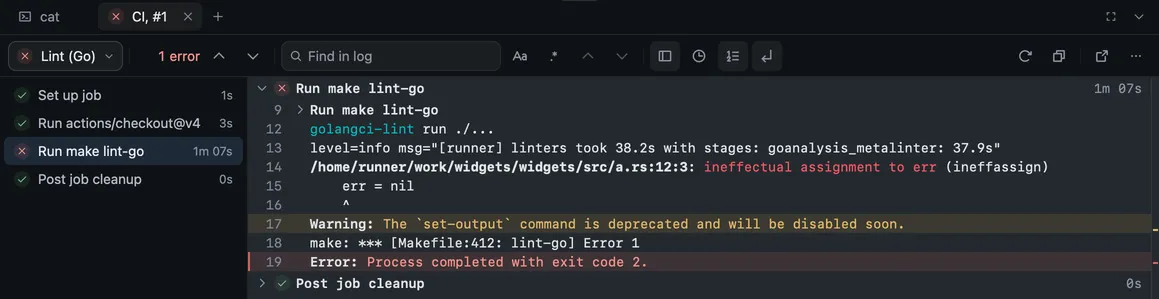
More log actions (⋯) in the log’s bar has Copy step, Copy log and Save log. A long log reads better on its own: Open as tab moves it to a tab beside the pull request, and Move to bottom pane brings it back.
Revue keeps the last status it read for each pull request, its checks and reviews, so a tab shows it at once. While it asks GitHub again, the review panel says “Checking GitHub…”. Offline, it says when the copy you see was read, such as “Offline. Showing GitHub as of 10:42.”, with Retry.
Submit your review
Section titled “Submit your review”- Choose Review at the top right, or press ⌥⌘R, to open the review panel. It lists the other reviews, the checks and your pending comments.
- Choose a verdict: Comment, Approve or Request changes. From anywhere in the pull request, ⌥⌘E, ⌥⌘A and ⌥⌘X choose one. Choosing a verdict sends nothing.
- Add a summary if you want one. For Request changes, the box asks you to say what needs to change.
- Choose the button at the bottom of the panel, named for your verdict, or press ⌘↩.
Revue sends the review and your pending comments to GitHub together, as one review.
If your connection drops while a reply is posting, Revue says “Your reply may have posted. Reload threads to check before sending it again.” Choose Reload threads to see what GitHub saved before you try again.
Keys for this guide
Section titled “Keys for this guide”| Action | Key |
|---|---|
| Show overview or changes | ⌥⌘O |
| Next file | J |
| Previous file | K |
| Go to file | ⌘P |
| Switch unified and split | U |
| Wrap lines | ⌥Z |
| Search in diff | ⌘F |
| Open current file in editor | O |
| Mark file viewed | V |
| Add comment | C |
| Reply | ↩ |
| Resolve thread | E |
| Comment actions | ⌘. |
| Next unresolved thread | N |
| Previous unresolved thread | P |
| Show comments | ⌥⌘K |
| Show or hide review panel | ⌥⌘R |
| Comment verdict | ⌥⌘E |
| Approve | ⌥⌘A |
| Request changes | ⌥⌘X |
In the review panel, ⌘↩ submits your review. Every key is listed in Keyboard shortcuts, and you can change most of them in Settings › Keyboard shortcuts.